 English
 Español
 Français
 Deutsch
 Italiano
 Português
 日本語
 Русский
 한국어
 简体中文
 繁體中文
 العربية
 Български
 Català
 Nederlands
 Ελληνικά
 हिन्दी
 Bahasa Indonesia
 Bahasa Melayu
 Polski
 Svenska
 ไทย
 Türkçe
 Українська
 Tiếng Việt
 Kiswahili
All tools › Security
Remove PDF Metadata and Inspect Hidden Details
A PDF can contain an author name, title or attached file that is not part of its visible page text. Inspect the supported categories, choose the details to remove and download a cleaned copy. Basic metadata cleaning is free without an account.
Basic use is free without an account, a daily file quota or a PDFandGO watermark. OCR, existing-text replacement and Word export are separate advanced operations; using them on the document can change its download-access requirements. Current allowances and Pro plans.
Inspect PDF MetadataDocument processing on your device · works in your browserHow to remove metadata from a PDF
- Choose your PDF. Wait for the tool to list the supported information categories it finds.
- Review the listed author details, attachment names and other findings. Leave selected only the categories you want removed.
- Choose the clean-and-download button. The tool checks the selected categories again after cleaning.
- Reopen the saved copy and check its document properties, visible content and any forms or links you need to keep.
Document properties and XMP metadata
Document properties can include an author, title, subject, keywords, creator application, producer and dates. XMP is another metadata format that may carry document details outside the visible page content.
The tool lists supported categories that it finds and lets you remove the selected ones. Removing a title from document properties does not remove the same title printed on a page. Use the redaction tool for visible content you do not want to distribute.
Attachments, comments and other supported details
The inspection also checks supported embedded files, document JavaScript entries, non-link and non-form annotations, JPEG EXIF markers and application-specific PieceInfo records. For example, a comment can include a reviewer’s name even when the main page text contains no author.
Removing a category can change useful document behavior. A comment or attachment may be something your recipient needs. Review the findings and selections instead of assuming that everything found should always be deleted.
What cleaning changes and what it leaves visible
Metadata cleaning targets the selected supported information. It does not black out names, reference numbers, signatures or faces printed on a page. It also does not add an opening password. Redaction and password protection have separate purposes.
Our example below keeps the visible reference, the editable field and the link while removing the selected hidden details. Complex PDFs can contain other structures. A clean result for the supported checks is not a promise that every possible kind of private information has been found.
Check the downloaded file before sharing
The tool checks the selected categories again after creating the output. Review the completion message, then inspect the downloaded document’s properties and the content you need to preserve. Keep the original when you may need its comments, attachments or metadata later.
The filename is separate from PDF document metadata. Rename the downloaded file if its name reveals information you do not want to share. Document processing stays in your browser; choosing a PDF does not upload its contents to a document-processing server.
Try the example and inspect the output
Our one-page sample contains seven supported categories: document information, XMP, an attached note, an inert JavaScript entry, a comment, JPEG EXIF and PieceInfo application data. We selected all seven and exported a cleaned PDF. Independent inspection confirmed that all seven hidden markers were absent from the output objects.
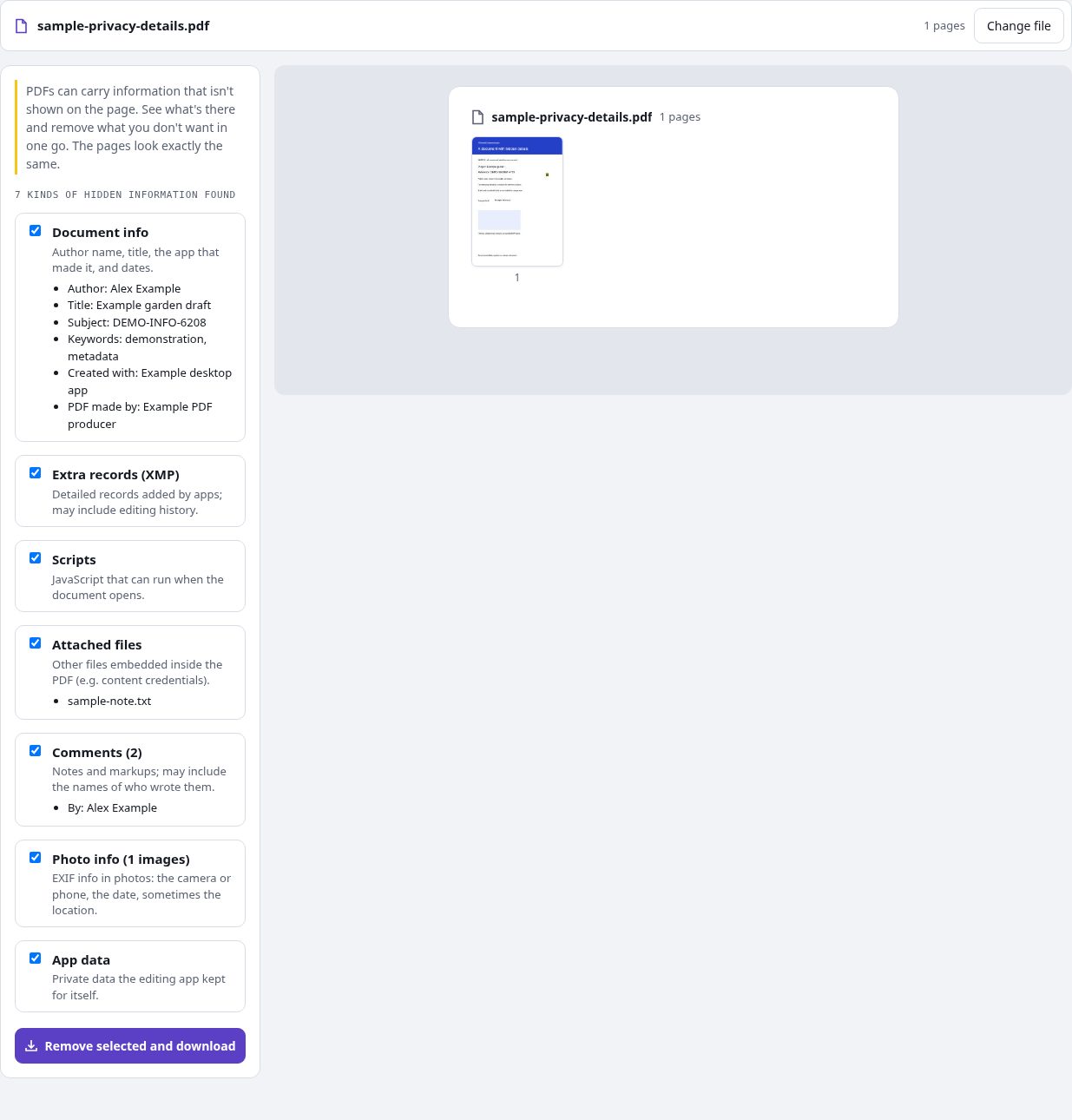
The visible reference “DEMO-SECRET-4729” remains, as do one editable field and one link. This shows why metadata cleaning is different from redaction. All sample names, records and identifiers are invented; the demonstration script does nothing.
Sample with invented metadataCleaned PDF with visible text retained
Questions and answers
Can I remove the author and title from a PDF?
Yes, when they are stored in the supported document-properties metadata. Select that category and save the cleaned copy. An author name or title printed on a page remains visible.
Does removing metadata redact visible text?
No. The visible page text is a separate part of the document. Use Redact PDF when the shared copy should exclude particular words or areas.
Will comments and form fields both be removed?
They are different structures. Selecting annotation cleanup removes supported non-link, non-form annotations. Our example retains its editable field and link. Check important interactive documents after downloading.
Does an empty findings list guarantee that a PDF has no private information?
No. It means the supported inspection did not find the categories it checks. Visible page content, the filename and other PDF structures may still disclose information. Review the document before sharing.
Are my document files uploaded?
No. PDF processing runs in your browser on your own device. Software, fonts or language models may download when needed. Account, payment and technical data are handled separately as explained in the privacy policy.
Does it work on a phone?
Use a supported modern browser on your phone, tablet or computer. Large or complex documents depend on your device memory and may take longer.
Is it free?
Basic use is free without an account, a daily file quota or a PDFandGO watermark. OCR, existing-text replacement and Word export are separate advanced operations; using them on the document can change its download-access requirements. Current allowances and Pro plans.