 English
 Español
 Français
 Deutsch
 Italiano
 Português
 日本語
 Русский
 한국어
 简体中文
 繁體中文
 العربية
 Български
 Català
 Nederlands
 Ελληνικά
 हिन्दी
 Bahasa Indonesia
 Bahasa Melayu
 Polski
 Svenska
 ไทย
 Türkçe
 Українська
 Tiếng Việt
 Kiswahili
All tools › Security
Redact Sensitive Information from a PDF
Mark sensitive areas and review all matches before exporting. Marked pages become images with the selected content removed; unmarked pages can retain native content in supported PDFs. Inspect the saved copy and any unsupported-structure error before sharing.
Manual area and exact-text redaction are basic operations. Automatic detection and OCR use advanced-download access. Check the current allowance and available options before saving. Current allowances and Pro plans.
Redact a PDFDocument processing on your device · works in your browserHow to redact a PDF
- Choose your PDF and open the Redact PDF tool. Keep an original copy for your own records.
- Type an exact word or phrase in the text-search box and mark its matches. You can also mark a page area manually.
- Review every marked area. When using automatic information types, review the suggested matches and apply the ones you need.
- Download as PDF, then reopen the saved copy to inspect the blacked-out areas and the content that should remain visible.
Why covering text with an ordinary shape is different
A rectangle drawn over words can leave the original text underneath. Someone may still be able to select or extract those words. A visual cover alone does not establish that the hidden content is absent from the file.
When you apply redactions, marked pages are rebuilt as images with the selected areas removed. Their original text layer is not retained. Pages without redaction marks are handled separately rather than automatically rasterizing the whole document.
Find exact text or mark an area
For a PDF with selectable text, search for the particular name, reference or phrase you want to remove. Check all occurrences and their surrounding text. A search for one spelling will not necessarily find another spelling, an abbreviation or text that exists only inside an image.
Manual area marks are useful for pictures, signatures and scanned content. To search words inside a scan, first use the available OCR controls to recognize the image text. OCR is an advanced feature, and recognition can miss or misread characters.
Review automatic matches before applying them
Automatic information types help locate supported patterns, such as email addresses or payment details. They produce candidates to review. A pattern match is not a guarantee that every sensitive detail has been found, and a similar-looking public value can also match.
Inspect the suggestions, apply the relevant matches and check each page before downloading. Manual marking and exact-text marking are basic operations; automatic detection and OCR use advanced-download access with the current daily allowances or Pro plan.
Understand what the exported copy preserves
Marked pages become images, so native text selection, links and interactive fields on those pages are lost. For supported PDF structures, unmarked pages can retain their native content. Do not assume an interactive feature survives on a marked page.
The tool can refuse an export when it cannot safely process the PDF structure. Review any error, keep the original and inspect the downloaded copy before sharing. A successful export still does not establish that you marked every sensitive detail. Redaction does not erase the original file on your device.
Try the example and inspect the output
We searched our invented reference “DEMO-SECRET-4729”, marked its match and exported a PDF. The result has one page image, a blacked-out reference and no original selectable text, form fields or live links. We also checked the decoded PDF objects for the reference and the sample’s hidden-detail markers; none were retained.
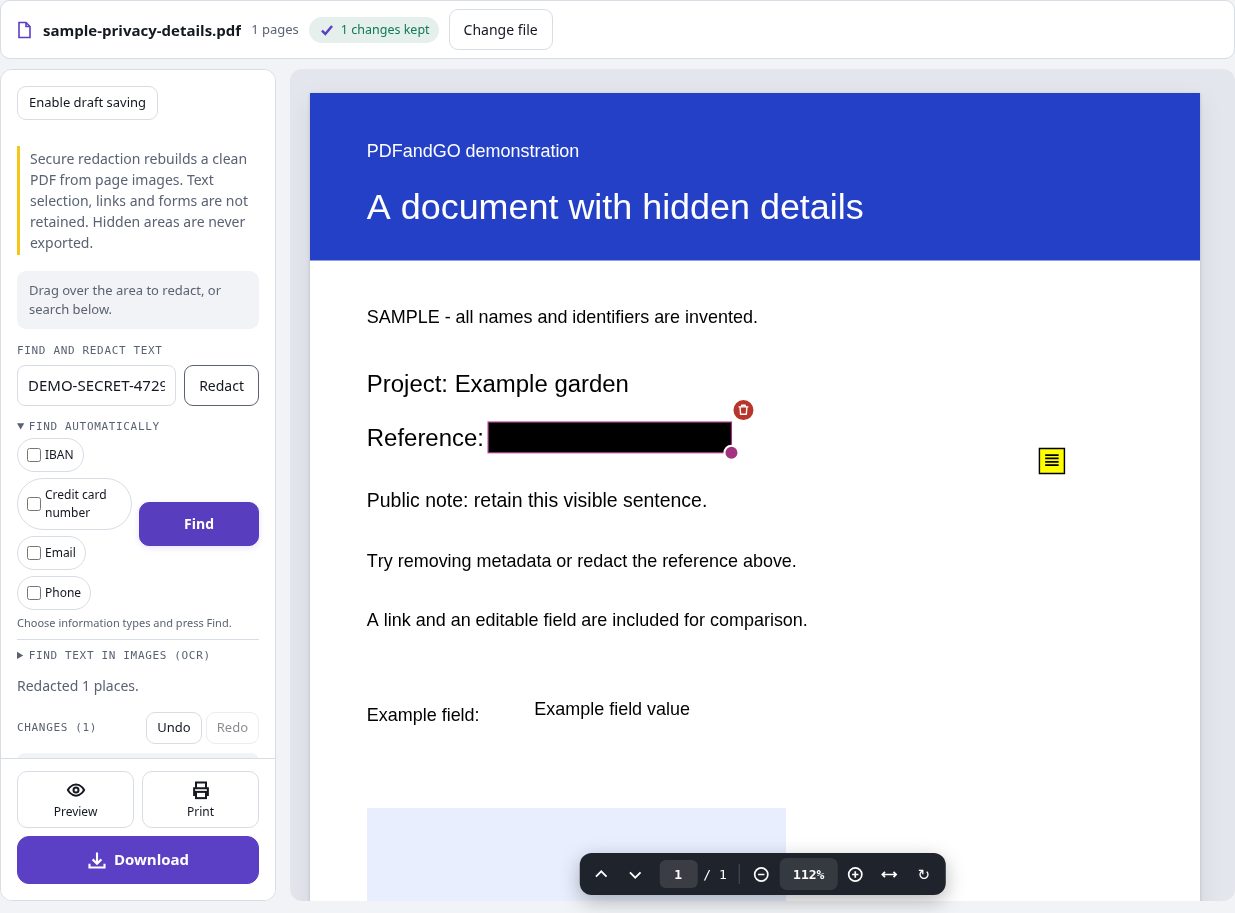
The remaining visible words are part of the page image. The original sample is provided for comparison and contains only invented data. Exact-text marking in this example used neither OCR nor automatic information-type detection.
Questions and answers
Is drawing a black box the same as redaction?
No. An overlay can leave the underlying text in the file. Apply redaction and review the saved copy.
Does automatic detection find every sensitive detail?
No. Matches are candidates to review. Check false matches, mark missed areas and inspect every relevant page.
Are all pages converted to images?
Marked pages are rebuilt as images. For supported structures, unmarked pages can retain native content. Image pages do not retain selectable text, live links or interactive fields.
Why can a redaction export be blocked?
The tool refuses PDF structures it cannot process safely. An unsupported-structure error is a reason to stop and review the document, not a claim that a safe output was created.
Are my document files uploaded?
PDF processing runs in your browser on your own device. Document files are not uploaded to a PDF-processing server. Software, fonts or language models may download when needed. Account, payment and technical data are handled separately under the privacy policy.
Does it work on a phone?
Use a supported modern browser. File complexity and device memory affect processing; inspect the downloaded copy.
Is it free?
Manual area and exact-text redaction are basic operations. Automatic detection and OCR use advanced-download access. Check the current allowance and available options before saving.