 English
 Español
 Français
 Deutsch
 Italiano
 Português
 日本語
 Русский
 한국어
 简体中文
 繁體中文
 العربية
 Български
 Català
 Nederlands
 Ελληνικά
 हिन्दी
 Bahasa Indonesia
 Bahasa Melayu
 Polski
 Svenska
 ไทย
 Türkçe
 Українська
 Tiếng Việt
 Kiswahili
All tools › Convert
Make Scanned PDFs Searchable with OCR
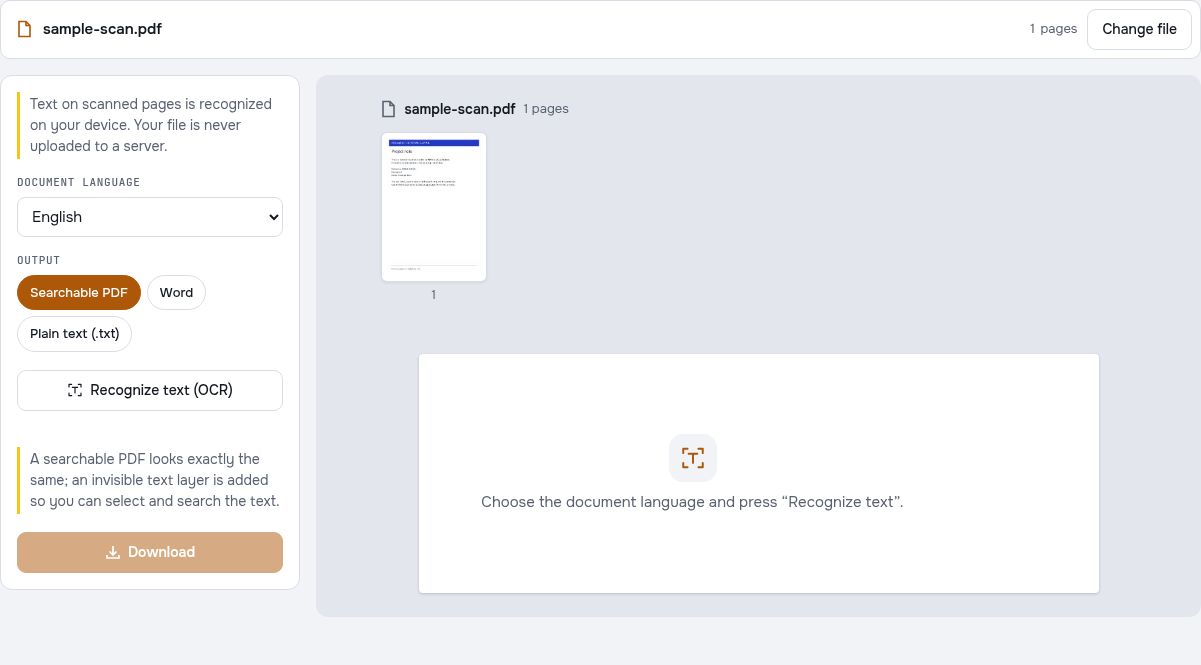
Recognize words in scanned PDF pages so you can search, copy or continue working with the text. OCR runs in your browser; its advanced downloads use daily allowances or Pro.
Advanced downloads use the daily file allowance shown in the tool. Guest and free-member allowances differ. Pro removes the daily file quota and renews monthly or yearly. Current allowances and Pro plans.
Recognize PDF TextDocument processing on your device · works in your browserHow to OCR a PDF online
- Open the scanned PDF and choose the language used in the document.
- Start text recognition and keep the page open while it processes.
- Review the recognized text, then use an available advanced allowance or Pro access to save the required output.
Also recognize text in images
For a PDF with selectable headings and text inside images, enable “Also recognize text in images” before starting OCR. Then save a searchable PDF or continue to Word. Existing selectable text is kept, and overlapping OCR words are omitted to avoid duplicates. Review the result before using it.
Turn a scanned page into searchable text
A scan is a picture of a page. OCR recognizes the characters in that picture and can add a text layer so words become searchable and selectable.
A searchable PDF keeps the page appearance with a recognized text layer. If you need to change wording or work in a word processor, continue with the editor or PDF to Word after reviewing recognition.
Choose the language and check accuracy
Clear, straight scans generally give better recognition than blurry photos, low-resolution images or handwriting. Choose the appropriate document language and check important names and numbers.
Recognition models may download when first needed. The document itself is processed on your device. Large files can take longer and use significant memory. If needed, use Split PDF to create a smaller document first, then run OCR on that copy.
Try the tool with sample files
Samples contain generated demonstration content, not real customer data. Keep the source when comparing settings. An example result does not guarantee the same behavior for every PDF.
Recognize a scan whose words cannot be selected yet
The scan PDF below contains a picture of the fictional project note and no text layer. Try selecting its words in a PDF reader first. Then use it to practice English OCR and compare the recognized text with the intact text PDF.
Choose the language of the page content
Select English for this sample even if the tool interface is displayed in another language. Interface translation does not identify the language printed in an image. Recognition may download language resources and use substantial memory, so begin with this single page.
Check distinctive text rather than assuming every word is right
Inspect the reference DEMO-EN-001, the revision label and the name Example User. Pay attention to similar-looking digits and letters. A searchable PDF should let you find recognized text, but searchability does not prove that every character or the reading order is correct.
Check your result
- Confirm that the input scan has no selectable text.
- Choose English as the recognition language.
- Compare recognized codes and names with the source image.
Try it with fictional sample files
These are synthetic practice inputs, not customer documents or promised outputs. Keep the originals and inspect your own exported copies. Current allowances and Pro plans apply to advanced downloads.
Continue with these tools:
Questions and answers
What does a searchable PDF contain?
A searchable PDF keeps the scanned page appearance and adds a recognized text layer. That layer lets a compatible PDF reader search and select words, without turning the page into a Word document.
Does OCR always recognize every word correctly?
No. Accuracy depends on scan quality, language and the page content. Review the result, especially numbers, names and unclear text.
Can I use the recognized text in Word?
Continue with PDF to Word after reviewing recognition. The Word output can need formatting or text corrections, especially for complex scans. Word exports also use advanced download allowances.
Are my document files uploaded?
No. PDF processing runs in your browser on your own device. Software, fonts or language models may download when needed. Account, payment and technical data are handled separately as explained in the privacy policy.
Does it work on a phone?
Use a supported modern browser on your phone, tablet or computer. Large or complex documents depend on your device memory and may take longer.
Is it free?
Advanced downloads use the daily file allowance shown in the tool. Guest and free-member allowances differ. Pro removes the daily file quota and renews monthly or yearly. Current allowances and Pro plans.
Why can I not copy words from the downloadable scan before OCR?
The scan contains a page image without a text layer. OCR can attempt to recognize the printed words and produce the supported output. Review the recognized text against the image; recognition accuracy is not guaranteed.