 English
 Español
 Français
 Deutsch
 Italiano
 Português
 日本語
 Русский
 한국어
 简体中文
 繁體中文
 العربية
 Български
 Català
 Nederlands
 Ελληνικά
 हिन्दी
 Bahasa Indonesia
 Bahasa Melayu
 Polski
 Svenska
 ไทย
 Türkçe
 Українська
 Tiếng Việt
 Kiswahili
All PDF tools › Convert, scan and recognize text
Scan a document to PDF
Photograph a paper document or choose existing page images. Check the page boundaries and appearance, arrange the scans and create a PDF copy.
Open the toolPDF processing on your device · keep your originalBasic use is free without an account, a daily file quota or a PDFandGO watermark. OCR, existing-text replacement and Word export are separate advanced operations; using them on the document can change its download-access requirements. Current allowances and Pro plans.
How to scan a document to PDF
- Open the camera with permission, or choose supported document images from your device.
- Add the pages and check their corners, crop and orientation.
- Choose the scan appearance, create a PDF and review the downloaded pages.
Make the source image readable
Use a flat surface and even lighting, with the full page and its corners visible. Automatic edge detection can choose the wrong boundary; review and adjust it. Blurred writing, shadows or clipped edges in the source remain important limitations after making a PDF.
Camera access and file selection
Camera use depends on browser support and permission. If access is unavailable, choose existing supported page images instead. Multiple pages can be collected into a document. Practical performance depends on photo resolution and device memory.
A scan is not yet searchable text
A PDF made from photos normally contains page images. It does not automatically provide selectable words. Continue with OCR when you need search, copying or a text conversion. Review recognition before using it; OCR has separate advanced-download rules.
Try the tool with sample files
Samples contain generated demonstration content, not real customer data. Keep the source when comparing settings. An example result does not guarantee the same behavior for every PDF.
Prepare a document photo before creating a scan PDF
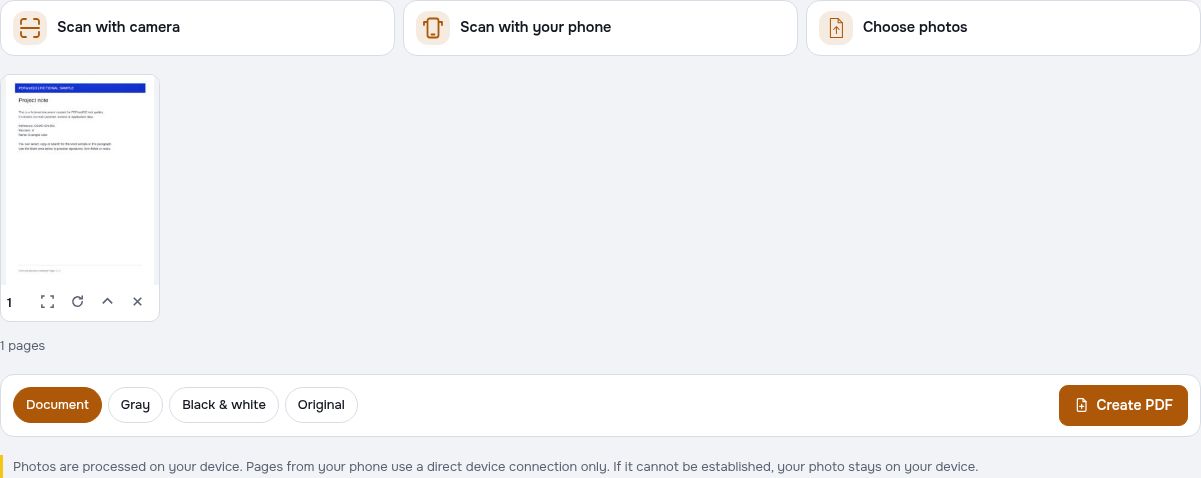
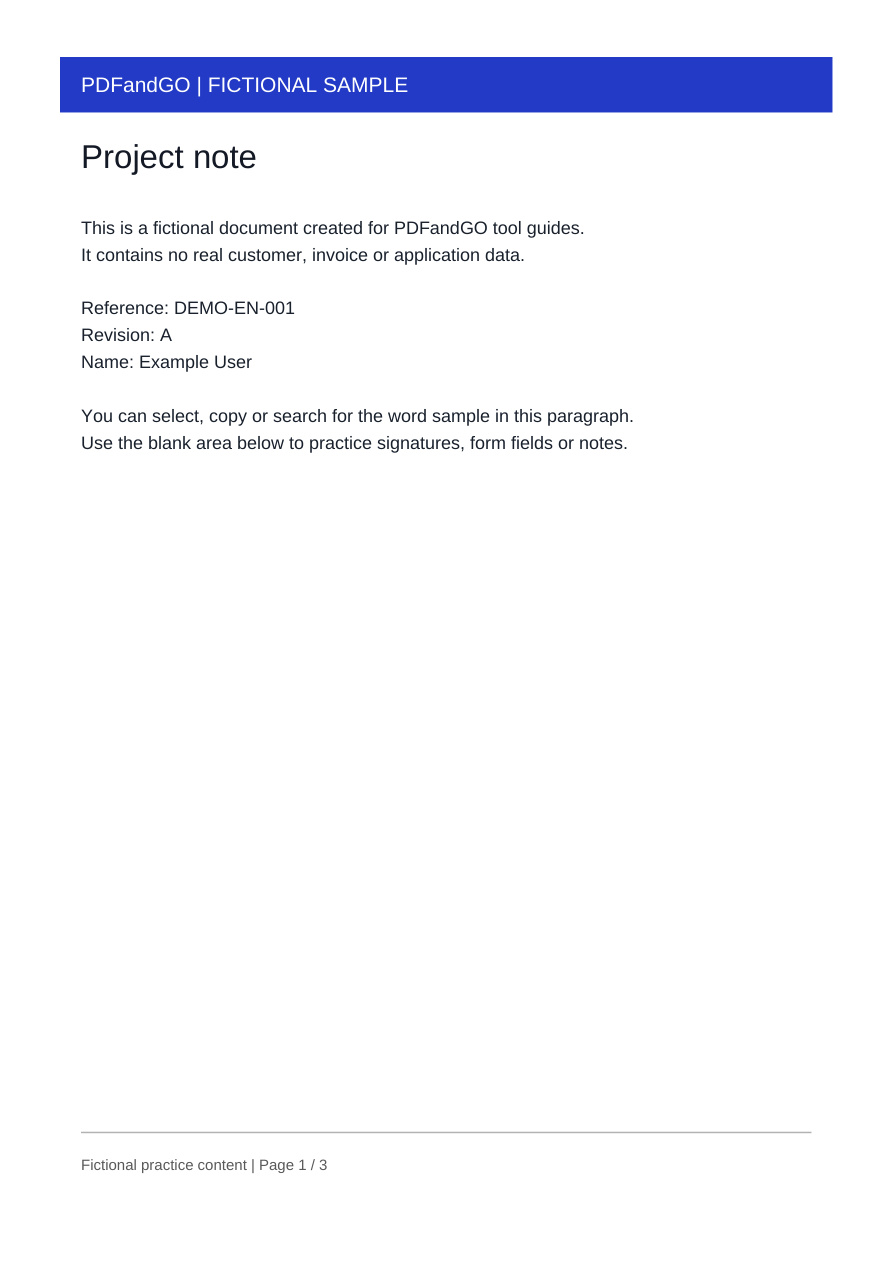
Import the fictional scan photo to practice the file-selection path without camera access. It contains a page heading, reference code and footer, giving you recognisable points to check after cropping, straightening or creating the PDF.
Keep every part of the document in view
Check the corners before applying a crop or perspective adjustment. In your own photos, start with a flat page, even lighting and a sharp image. A tighter crop can improve presentation, but it should not remove a reference number, handwritten note or page footer.
Decide whether the next step needs text recognition
A scan PDF can be suitable for viewing or printing while still containing only page images. If you need search or copyable words, use OCR as a separate operation and select the document language. Compare recognized codes and numbers with the original photo.
Check your result
- Check the heading, reference and footer after any crop.
- Review page orientation and image sharpness.
- Use OCR separately if text search or copying is needed.
Try it with fictional sample files
These are synthetic practice inputs, not customer documents or promised outputs. Keep the originals and inspect your own exported copies. Current allowances and Pro plans apply to advanced downloads.
Continue with these tools:
Questions and answers
Do I need to install a scanner app?
You can use a supported browser. Camera permission is needed for capture, or you can select existing supported images.
Can I scan several pages into one PDF?
Yes. Add pages to the scan list and review their order before creating the document.
Why can I not select words in my scan?
The pages may be images without a text layer. OCR is a separate step for recognized, searchable words.
What if the camera does not open?
Check browser camera permission and support. You can also choose existing document photos from the device.
Are my document files uploaded?
PDF processing runs in your browser on your own device. Document files are not uploaded to a PDF-processing server. Software, fonts or language models may download when needed. Account, payment and technical data are handled separately under the privacy policy.
What are the access and download rules?
Basic use is free without an account, a daily file quota or a PDFandGO watermark. OCR, existing-text replacement and Word export are separate advanced operations; using them on the document can change its download-access requirements.
Does importing the sample photo make its words searchable?
No. Creating a scan PDF from a photo does not by itself recognize the printed text. Use OCR if you need a text layer, then compare the recognized words and reference codes with the source image.