

 English
 Español
 Français
 Deutsch
 Italiano
 Português
 日本語
 Русский
 한국어
 简体中文
 繁體中文
 العربية
 Български
 Català
 Nederlands
 Ελληνικά
 हिन्दी
 Bahasa Indonesia
 Bahasa Melayu
 Polski
 Svenska
 ไทย
 Türkçe
 Українська
 Tiếng Việt
 Kiswahili
All tools › Pages
Organize PDF Pages Online for Free
Put PDF pages in the order you need, remove unwanted pages and turn sideways pages before saving a new document. The page organizer is a free basic tool that works on your device.
Basic use is free without an account, a daily file quota or a PDFandGO watermark. OCR, existing-text replacement and Word export are separate advanced operations; using them on the document can change its download-access requirements. Current allowances and Pro plans.
Organize PDF PagesDocument processing on your device · works in your browserHow to rearrange PDF pages
- Choose the PDF and wait for its page thumbnails.
- Use the left and right buttons on a page card to move it. Check the original-page labels when the order changes.
- Rotate individual pages or remove unwanted page cards. Keep at least one page in the result.
- Download the organized PDF and check its order and rotation in a reader. Keep your original file if you may need removed pages later.
Move pages into a new order
The thumbnails represent the pages in the output order. Move a cover sheet to the front, place an appendix after the main report or correct the order of a scan using the page-card buttons.
Moving a page changes its position in this document. To combine separate PDF files first, use Merge PDF. To save selected page ranges as separate documents, use Split PDF.
Delete unwanted PDF pages
Remove a blank scan, an outdated attachment or an unnecessary page with the delete button on its card. The organizer requires at least one page to remain.
Deleting a whole page is different from removing sensitive words on a page you want to keep. Use Redact PDF for permanent removal of selected content from retained pages.
Rotate a page and check the preview
The rotate control turns a selected page in 90-degree steps. You can correct a sideways scan without turning the other pages, or use the rotate-all control when the entire document is sideways.
Check the thumbnail and the exported file. Rotation changes the page orientation; it does not recognize, rewrite or translate the text.
Save a new copy and keep the source
Before downloading, Reset returns the current arrangement to the working document’s original page order and rotations. After export, the app uses the newly organized document as the working copy. Reopen your original file if you need a page that was removed from that copy.
The result is a new PDF made from the selected pages. Check forms, bookmarks and internal links in important documents, because document-level interactive features can behave differently in the new file.
Try the example and inspect the output
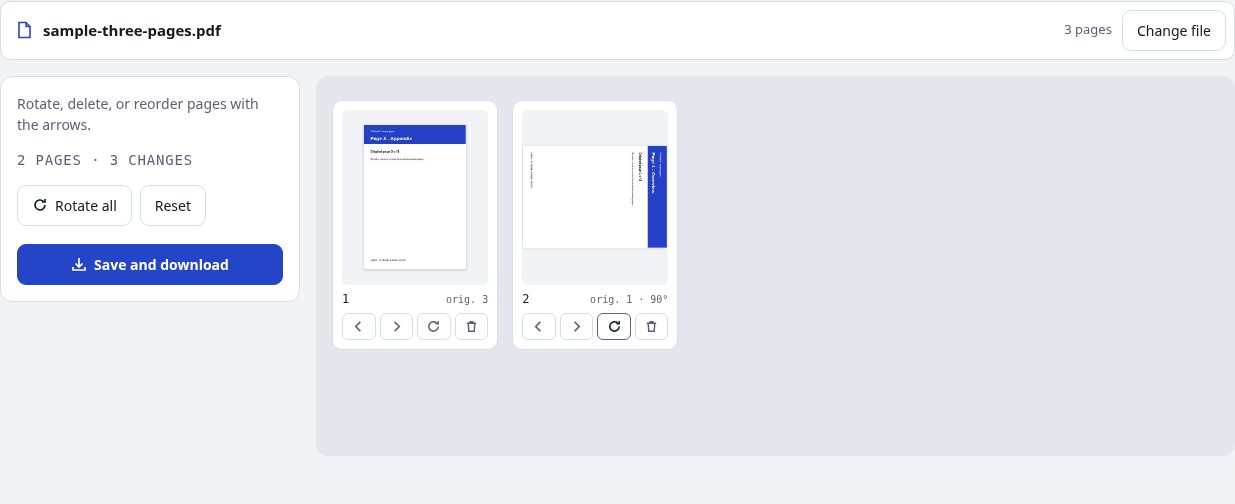
We started with three labeled pages: Overview, Checklist and Appendix. Using the page-card buttons, we moved page 3 before page 1, removed page 2 and rotated the second output page by 90 degrees. The downloaded result has two pages, in original-page order 3 then 1.
Insert a blank page when needed
Use the add-blank control on a page card to insert a page after it, or add one at the end. Check its orientation and location before saving. This adds a page to the working PDF; Create PDF is available when you want to start a separate blank document.
Questions and answers
Can I reorder PDF pages without merging files?
Yes. Open one PDF and move its page cards left or right. Use Merge PDF only when you need pages from separate PDF files.
Can I rotate just one page?
Yes. Use that page card’s rotate button. It turns the page in 90-degree steps without rotating the other pages.
Can I delete every page?
No. At least one page must remain in a PDF. Remove only the pages you do not want in the output.
Can I restore a removed page after downloading?
Keep and reopen the original PDF when you need a removed page. After export the working copy is the newly organized file; Reset does not recreate pages absent from that copy.
Are my document files uploaded?
No. PDF processing runs in your browser on your own device. Software, fonts or language models may download when needed. Account, payment and technical data are handled separately as explained in the privacy policy.
Does it work on a phone?
Use a supported modern browser on your phone, tablet or computer. Large or complex documents depend on your device memory and may take longer.
Is it free?
Basic use is free without an account, a daily file quota or a PDFandGO watermark. OCR, existing-text replacement and Word export are separate advanced operations; using them on the document can change its download-access requirements. Current allowances and Pro plans.