 English
 Español
 Français
 Deutsch
 Italiano
 Português
 日本語
 Русский
 한국어
 简体中文
 繁體中文
 العربية
 Български
 Català
 Nederlands
 Ελληνικά
 हिन्दी
 Bahasa Indonesia
 Bahasa Melayu
 Polski
 Svenska
 ไทย
 Türkçe
 Українська
 Tiếng Việt
 Kiswahili
All tools › Convert
Convert JPG and Images to PDF for Free
Turn JPG, PNG or WEBP images into a PDF. Put photos or screenshots in order, choose the page settings and save one document directly from your browser.
Basic use is free without an account, a daily file quota or a PDFandGO watermark. OCR, existing-text replacement and Word export are separate advanced operations; using them on the document can change its download-access requirements. Current allowances and Pro plans.
Convert Images to PDFDocument processing on your device · works in your browserHow to convert JPG to PDF
- Choose supported images from your device.
- Arrange the images in page order and choose the page size and margins.
- Review the pages and download the PDF.
Combine photos into one document
Use the converter for photographed pages, screenshots or a group of image files that should travel together. Each image becomes a page in the chosen order.
Review orientation and page settings, especially when portrait and landscape pictures are mixed. Small source images can still look blurry when enlarged to a full page.
Images stay on your device
The PDF is created in your browser. Basic image-to-PDF conversion is free without an account or a PDFandGO watermark. Large groups of high-resolution photos depend on your available memory.
A photo of text remains an image in the resulting PDF. If you need searchable words or editable text, continue with OCR, which uses advanced download allowances.
Try the tool with sample files
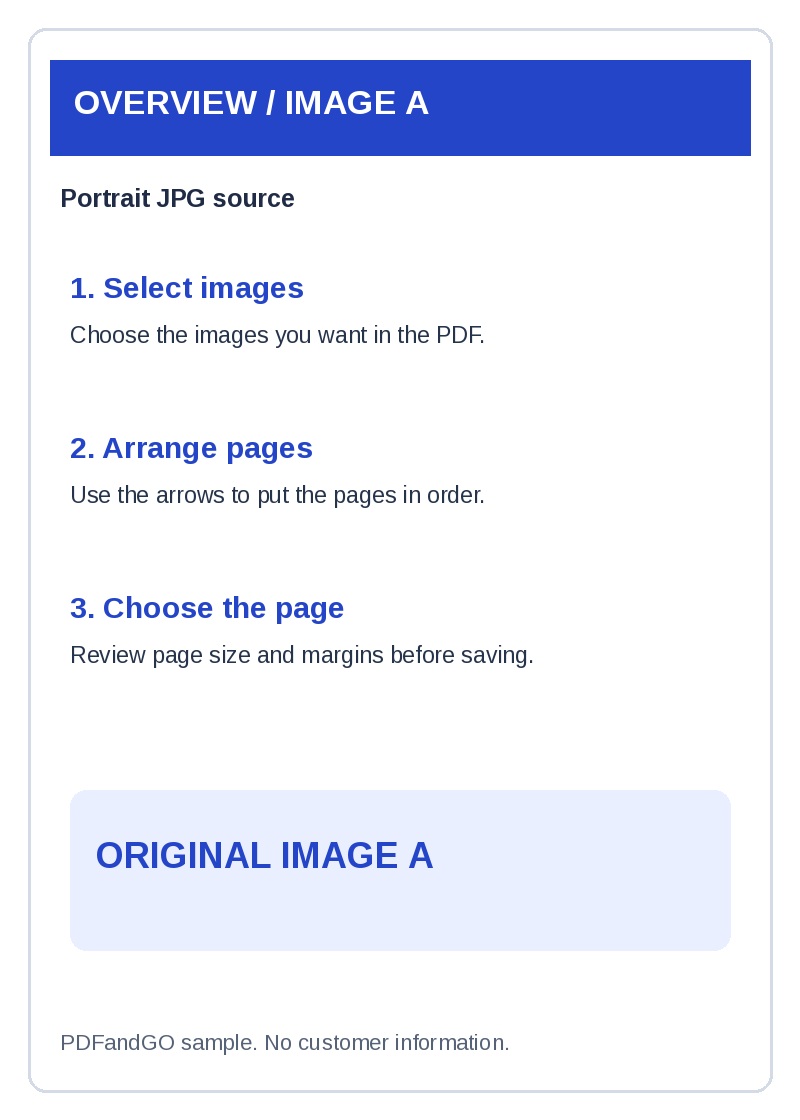
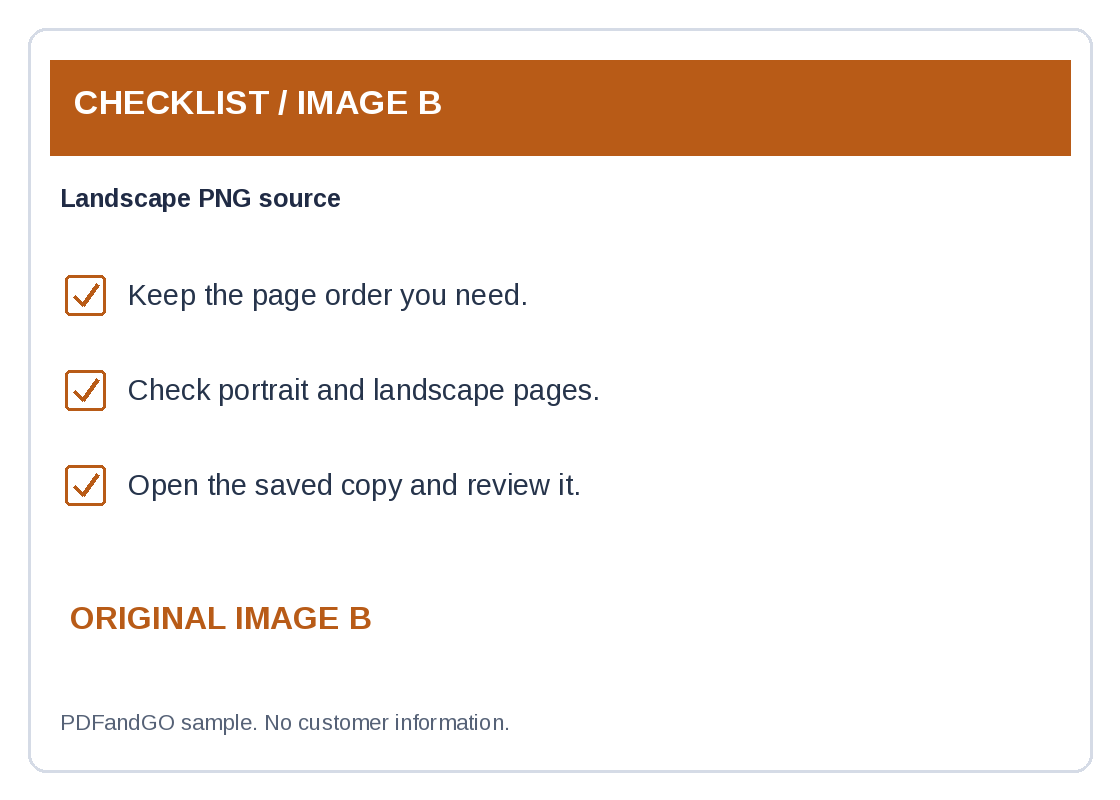
Samples contain generated demonstration content, not real customer data. Keep the source when comparing settings. An example result does not guarantee the same behavior for every PDF.
Place a sample document photo on a PDF page
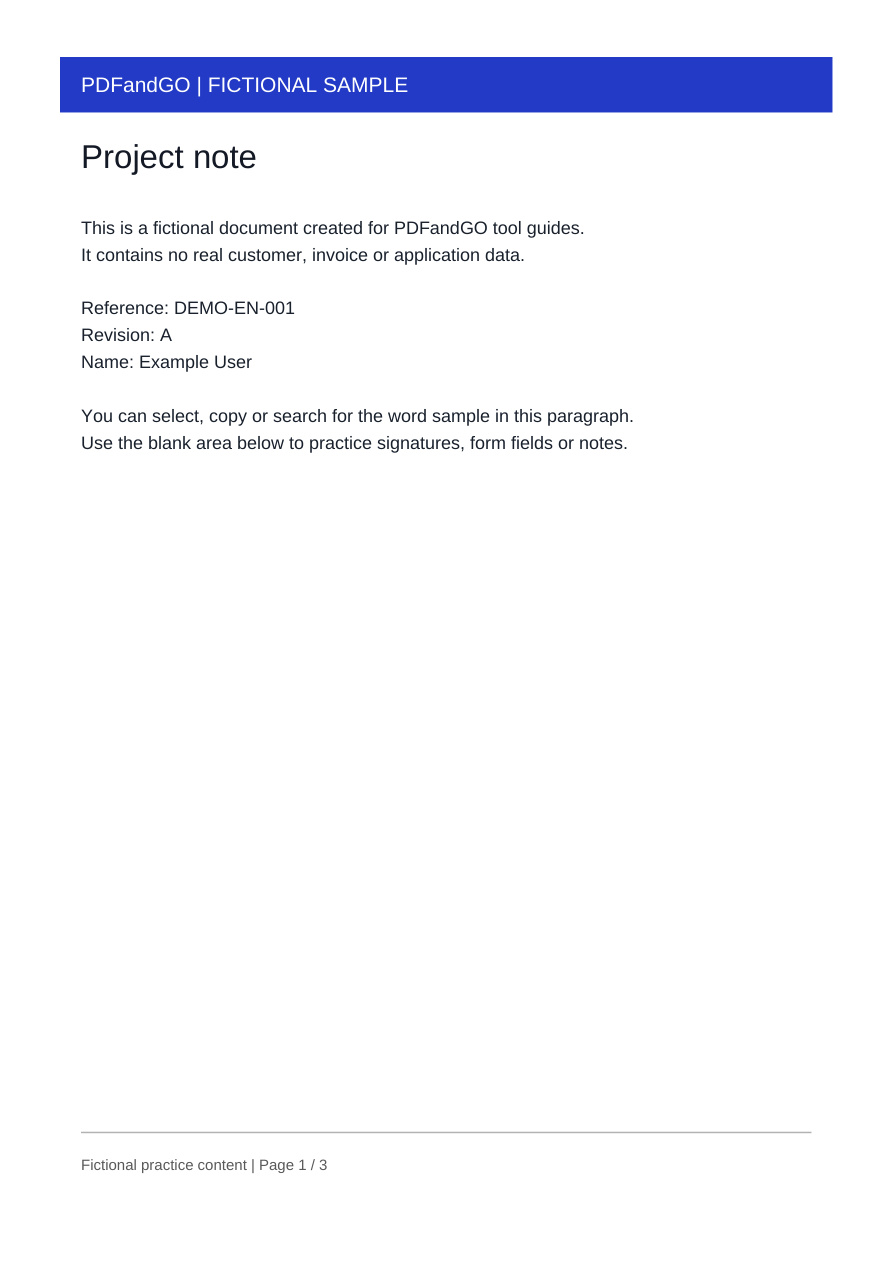
Download the fictional document photo below and add it to JPG to PDF. Use it to check page size, orientation and margins before combining photographs from your own camera. The sample is an image, so its printed text is not automatically editable.
Fit the whole document inside the page
Inspect all four edges of the photo. Choose a page size and supported fitting options that keep the heading and footer visible. A photo fitted to a page can leave margins; cropping it to fill the page can remove information at the edges.
Check order when adding more than one image
For a multi-image document, arrange the inputs before creating the PDF and inspect the resulting page order. Zoom in on small text to judge whether the source photograph has enough detail. Converting a blurred photo into PDF does not restore missing detail.
Check your result
- Keep all four document edges inside the output page.
- Review orientation, page size and any margins.
- Check small text in the saved PDF before sharing it.
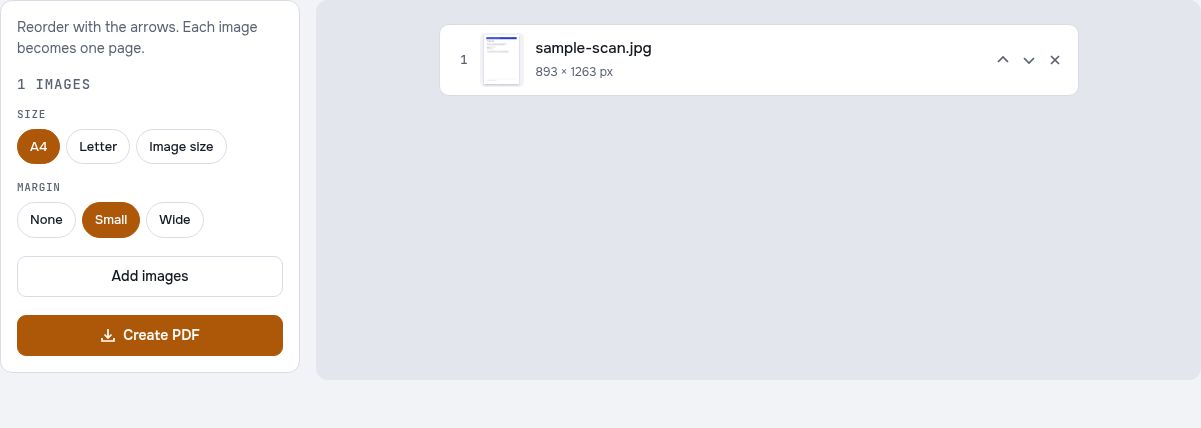
Try it with fictional sample files
These are synthetic practice inputs, not customer documents or promised outputs. Keep the originals and inspect your own exported copies. Current allowances and Pro plans apply to advanced downloads.
Continue with these tools:
Questions and answers
Can I convert PNG or WEBP too?
Yes. The tool accepts JPG, PNG and WEBP images. Choose supported files and review the page order before creating the PDF.
Can several photos become one PDF?
Yes. Add the photos, arrange them in order and create a single PDF document. Try a smaller batch if very large photos exceed your device memory.
Will photographed text become editable?
Image-to-PDF conversion places the photo on a page; it does not recognize its text. Use OCR when you need searchable or editable words.
Are my document files uploaded?
No. PDF processing runs in your browser on your own device. Software, fonts or language models may download when needed. Account, payment and technical data are handled separately as explained in the privacy policy.
Does it work on a phone?
Use a supported modern browser on your phone, tablet or computer. Large or complex documents depend on your device memory and may take longer.
Is it free?
Basic use is free without an account, a daily file quota or a PDFandGO watermark. OCR, existing-text replacement and Word export are separate advanced operations; using them on the document can change its download-access requirements. Current allowances and Pro plans.
Can I practice JPG to PDF with the downloadable scan photo?
Yes. Add the fictional JPG, choose page and fitting options, and export a PDF copy. Check the edges and small text. The conversion places an image on a PDF page; OCR is a separate step if searchable text is needed.