 English
 Español
 Français
 Deutsch
 Italiano
 Português
 日本語
 Русский
 한국어
 简体中文
 繁體中文
 العربية
 Български
 Català
 Nederlands
 Ελληνικά
 हिन्दी
 Bahasa Indonesia
 Bahasa Melayu
 Polski
 Svenska
 ไทย
 Türkçe
 Українська
 Tiếng Việt
 Kiswahili
All tools › Convert
Convert PDF to an Editable Word Document
Turn PDF text into a Word document you can edit. Review the conversion preview, then save a DOCX file. Word exports are advanced downloads and use daily allowances or Pro.
Advanced downloads use the daily file allowance shown in the tool. Guest and free-member allowances differ. Pro removes the daily file quota and renews monthly or yearly. Current allowances and Pro plans.
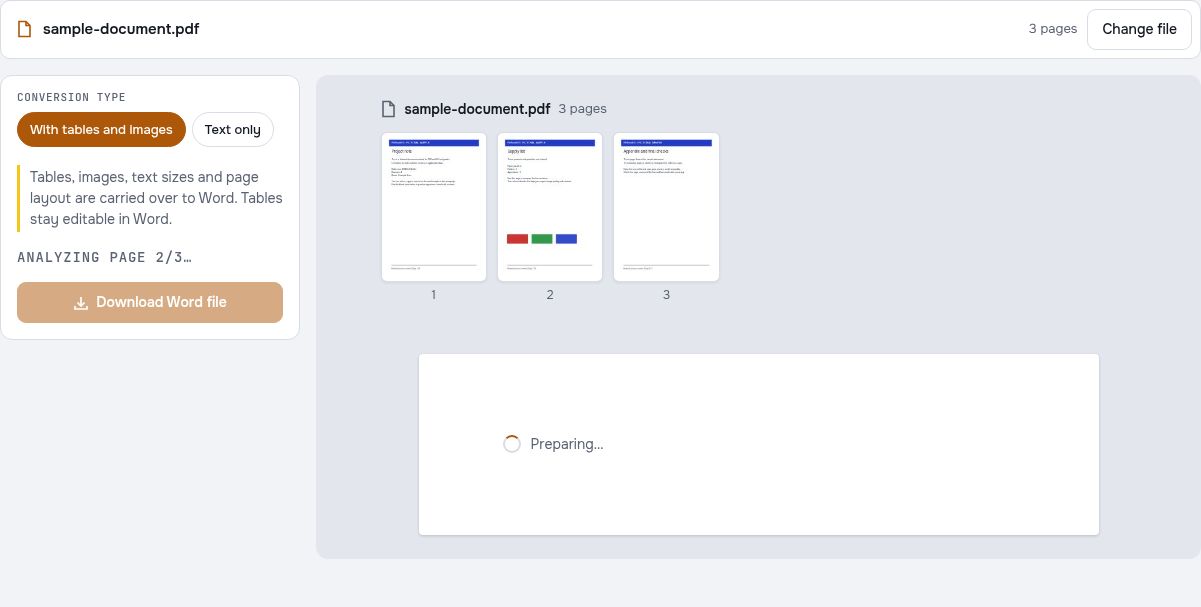
Convert PDF to WordDocument processing on your device · works in your browserHow to convert PDF to Word
- Open a PDF in the Word conversion tool.
- Review the layout preview. If the document is a scan, recognize its text with OCR as needed.
- Check your available advanced-download allowance or Pro access, then save the DOCX and review it in your word processor.
Also recognize text in images
For a PDF with selectable headings and text inside images, enable “Also recognize text in images” before starting OCR. Then save a searchable PDF or continue to Word. Existing selectable text is kept, and overlapping OCR words are omitted to avoid duplicates. Review the result before using it.
Preserve layout keeps added page numbers and watermarks as transparent pictures; the document text remains editable. Text mode extracts the main text.
Convert a text PDF or a scanned document
A PDF with selectable text contains words that can be carried into an editable document. A scanned page contains a picture and needs OCR before its words can be recognized.
Scanned content may use a page image with recognized text layered over it. Review the exported file, especially names, numbers and text that OCR may have misread.
Review layout and formatting
PDF pages do not store paragraphs in the same way as a Word document. Columns, unusual fonts, graphics and complex tables may need adjustment after conversion.
Use the preview to check page order and appearance, then open the DOCX in your chosen word processor. Keep the source PDF so you can compare the result. Conversion is processed on your device, without uploading the PDF for processing.
Compare text extraction with the original PDF layout
Begin with the fictional text PDF, whose headings and supply list can be selected in a reader. Convert a copy to Word under the applicable advanced-download allowance, then compare the resulting document with the source before treating it as a finished editable report.
Check reading order and quantity labels
In the Word result, find the project note, the supply list and the appendix. Confirm that Folders is still paired with the quantity 3 in revision A. A visually similar result can still contain broken lines, misplaced labels or reading-order differences.
Use the scan as a separate recognition exercise
The image-only sample has no text layer to extract directly. If you try it, review the OCR options that the current workflow offers or run OCR separately first. A scan and a text PDF are different inputs, so the result from one does not predict the other’s editability or layout.
Check your result
- Check the order of headings and paragraphs in Word.
- Compare names, reference codes and quantities with the PDF.
- Open the Word result in the application you will actually edit with.
Try it with fictional sample files
These are synthetic practice inputs, not customer documents or promised outputs. Keep the originals and inspect your own exported copies. Current allowances and Pro plans apply to advanced downloads.
Continue with these tools:
Questions and answers
Which programs can open the DOCX output?
The output is a DOCX document for compatible word processors, including modern Word, LibreOffice and Google Docs. Fonts and layout can appear differently between programs, so review the file in the program you plan to use.
Can I convert a scanned PDF?
A scanned page needs OCR to recognize its text. Review the recognized words and the Word preview; the result can require manual correction.
Will every PDF keep exactly the same formatting?
No. Complex layouts, font differences and image-based pages can need adjustments in Word. Preview the output and compare important pages with the source PDF.
Are my document files uploaded?
No. PDF processing runs in your browser on your own device. Software, fonts or language models may download when needed. Account, payment and technical data are handled separately as explained in the privacy policy.
Does it work on a phone?
Use a supported modern browser on your phone, tablet or computer. Large or complex documents depend on your device memory and may take longer.
Is it free?
Advanced downloads use the daily file allowance shown in the tool. Guest and free-member allowances differ. Pro removes the daily file quota and renews monthly or yearly. Current allowances and Pro plans.
Which sample should I use to test editable text first?
Start with the fictional text PDF because its words can be selected directly. Compare the Word result with that source. Use the image-only scan as a separate OCR exercise and check the supported recognition options.