 English
 Español
 Français
 Deutsch
 Italiano
 Português
 日本語
 Русский
 한국어
 简体中文
 繁體中文
 العربية
 Български
 Català
 Nederlands
 Ελληνικά
 हिन्दी
 Bahasa Indonesia
 Bahasa Melayu
 Polski
 Svenska
 ไทย
 Türkçe
 Українська
 Tiếng Việt
 Kiswahili
All PDF tools › File size and document structure
Process a batch of PDF files
Use the same selected settings on a group of PDFs. Review each file’s status and collect the successful copies in a ZIP download.
Open the toolPDF processing on your device · keep your originalBasic use is free without an account, a daily file quota or a PDFandGO watermark. OCR, existing-text replacement and Word export are separate advanced operations; using them on the document can change its download-access requirements. Current allowances and Pro plans.
How to batch process PDFs
- Add PDF files to the batch list.
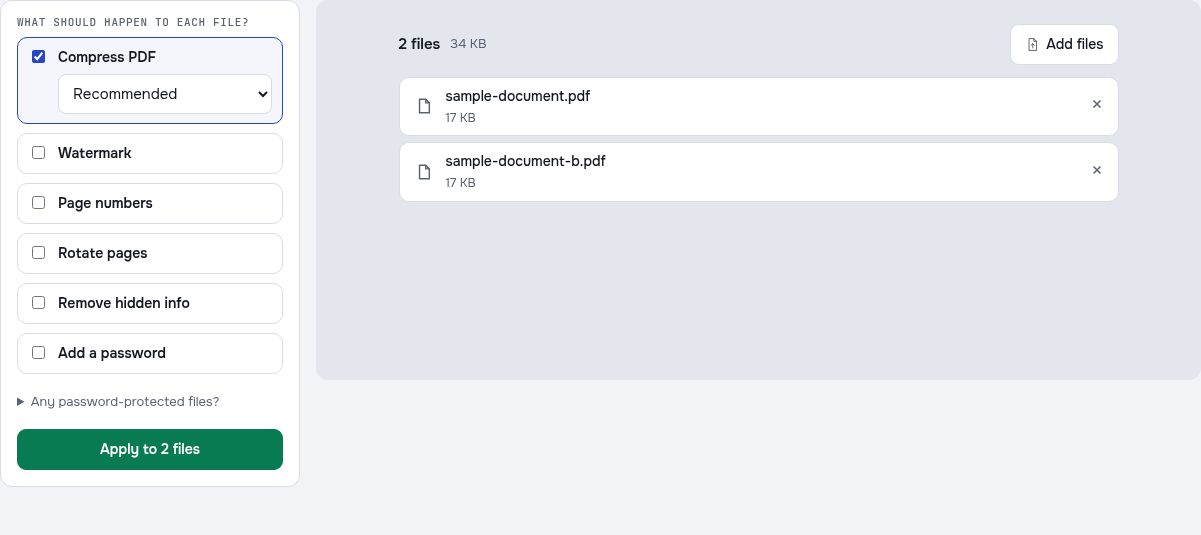
- Choose the available actions and check their settings, such as compression level, watermark or rotation.
- Run the batch, review errors and download the successful results as a ZIP.
A batch is not a merge
The output ZIP contains separate PDF files. It does not combine their pages into one document. Use Merge PDF when the required result is a single PDF rather than a package of separate copies.
Check how each chosen action changes the file
A stronger compression level can turn pages into images, removing searchable text or interactive content. A watermark is a visible mark, while metadata cleanup targets supported hidden details. Choose the actions that fit the documents rather than applying every option automatically.
File-count limits and device capacity
You can add up to 100 PDFs in a batch. That does not guarantee that every device can process 100 large files comfortably. Try smaller groups when memory is limited. A failing file is marked in the list while other files can continue; inspect the results before distributing the ZIP.
Try the tool with sample files
Samples contain generated demonstration content, not real customer data. Keep the source when comparing settings. An example result does not guarantee the same behavior for every PDF.
Test a two-file batch before processing a larger collection
Add the fictional A and B reports as separate inputs. Each contains three pages and can be identified by its revision label. Choose only the operation you intend to test, then inspect both outputs before using a larger group of documents.
Keep the identity of each input clear
Check the file list and distinguish the two revisions before starting. A batch applies a chosen workflow to multiple files; it does not automatically combine them into one document. Use PDF merge when the required result is one PDF with consecutive pages.
Review each result inside the download
If the batch result is packaged in an archive, open it and inspect each output separately. Compare page counts and the effect of the selected operation. One successful file does not establish that every input was readable or that every operation had the same effect.
Check your result
- Confirm that both intended revisions are in the input list.
- Compare the number of successful outputs with the inputs.
- Open both results and verify the selected operation.
Try it with fictional sample files
These are synthetic practice inputs, not customer documents or promised outputs. Keep the originals and inspect your own exported copies. Current allowances and Pro plans apply to advanced downloads.
Continue with these tools:
Questions and answers
How many PDFs can I add?
The batch list allows up to 100 PDF files. File sizes, complexity and device memory affect practical performance.
What happens if one PDF fails?
Its status is marked in the list. Other successful files can continue; review both the error and the downloaded results.
Does the ZIP contain one merged PDF?
No. It packages separate processed PDFs. Use the merge tool for a single combined document.
Will stronger compression preserve form fields?
Image-based compression does not retain interactive form fields or native text. Review the level before processing important documents.
Are my document files uploaded?
PDF processing runs in your browser on your own device. Document files are not uploaded to a PDF-processing server. Software, fonts or language models may download when needed. Account, payment and technical data are handled separately under the privacy policy.
What are the access and download rules?
Basic use is free without an account, a daily file quota or a PDFandGO watermark. OCR, existing-text replacement and Word export are separate advanced operations; using them on the document can change its download-access requirements.
Should the two sample files in a batch become one PDF?
Not automatically. A batch processes the selected files according to the chosen workflow and may package separate outputs in an archive. Use the dedicated merge tool when you want one combined PDF.