 English
PDF guides with step-by-step examples › PDF to PowerPoint
How it works
- Choose PDF file
- Pages
- PDF to PowerPoint
- Convert and download
Output format
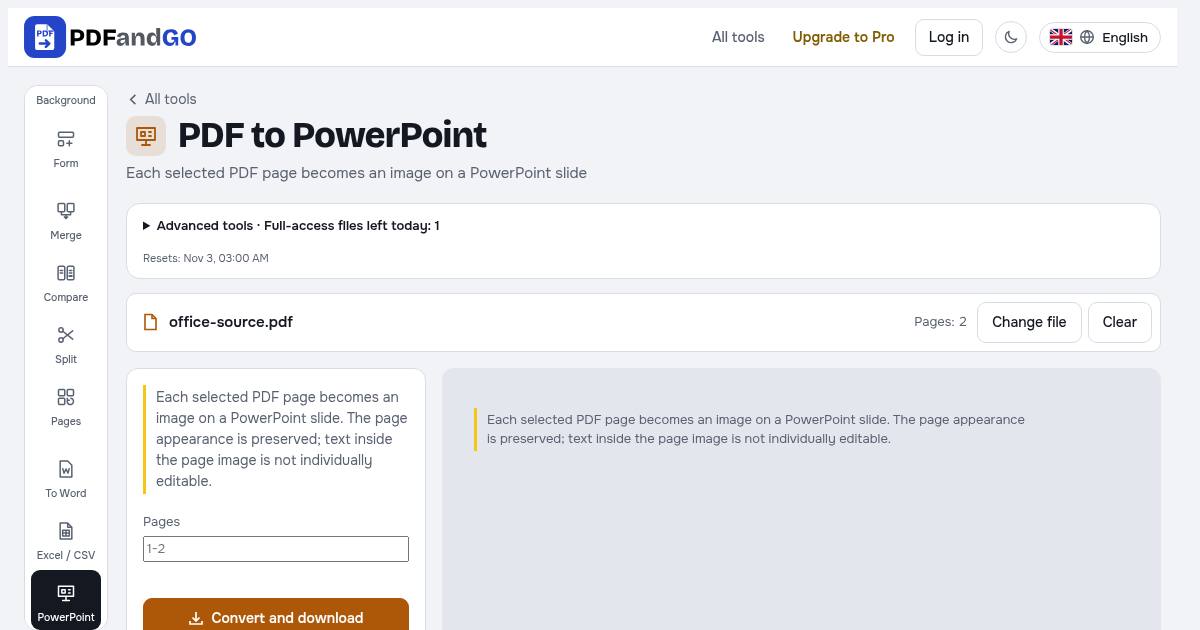
The presentation contains one slide for each selected page. Different page sizes fit centrally without cropping and keep their order. Check readability in PowerPoint and save your presentation. Large conversions take time; keep the tab open while processing.
Frequently asked questions
Can I edit text inside the slide images?
Each selected PDF page becomes an image on a PowerPoint slide. The page appearance is preserved; text inside the page image is not individually editable.
Are my documents uploaded to a server?
PDF processing takes place in your browser; these tools do not upload your document for processing. Account, payment and advertising services can make their own network connections. See the privacy policy for details.
Can I use the tools without an account?
Basic tools are free without an account. Advanced downloads use daily allowances or Pro, and some tools require Pro. Check the pricing page for current access and limits.