 English
 Español
 Français
 Deutsch
 Italiano
 Português
 日本語
 Русский
 한국어
 简体中文
 繁體中文
 العربية
 Български
 Català
 Nederlands
 Ελληνικά
 हिन्दी
 Bahasa Indonesia
 Bahasa Melayu
 Polski
 Svenska
 ไทย
 Türkçe
 Українська
 Tiếng Việt
 Kiswahili
All PDF tools › Manage PDF pages
Compare two PDF versions
Find areas to review between an earlier document and a revised copy. Inspect highlighted text or page-image differences alongside the original PDFs.
Open the toolPDF processing on your device · keep your originalBasic use is free without an account, a daily file quota or a PDFandGO watermark. OCR, existing-text replacement and Word export are separate advanced operations; using them on the document can change its download-access requirements. Current allowances and Pro plans.
How to compare PDF files
- Open the first PDF and choose the second version.
- Review the available text or visual comparison and navigate through the marked differences.
- Verify important changes against the originals, then save the marked output if needed.
Text comparison and visual comparison
Text differences can help locate changes in wording. Visual comparison can show changed page regions, including scans without a text layer. A new line wrap, a shifted page or scan noise can also create a difference even when the intended wording has not changed.
A review aid, not a complete interpretation
The tool does not judge the meaning or importance of a revision. It does not guarantee that every change is found or that every marked region represents a substantive change. Check critical names, numbers and surrounding passages in the source documents.
Different page layouts need extra attention
Versions can have different page counts, rearranged sections or different fonts. These changes can complicate page pairing and text extraction. Use annotations for your own review notes after comparison, and keep both original files rather than treating a marked output as a replacement for them.
Try the tool with sample files
Samples contain generated demonstration content, not real customer data. Keep the source when comparing settings. An example result does not guarantee the same behavior for every PDF.
Practice a PDF comparison with two controlled revisions
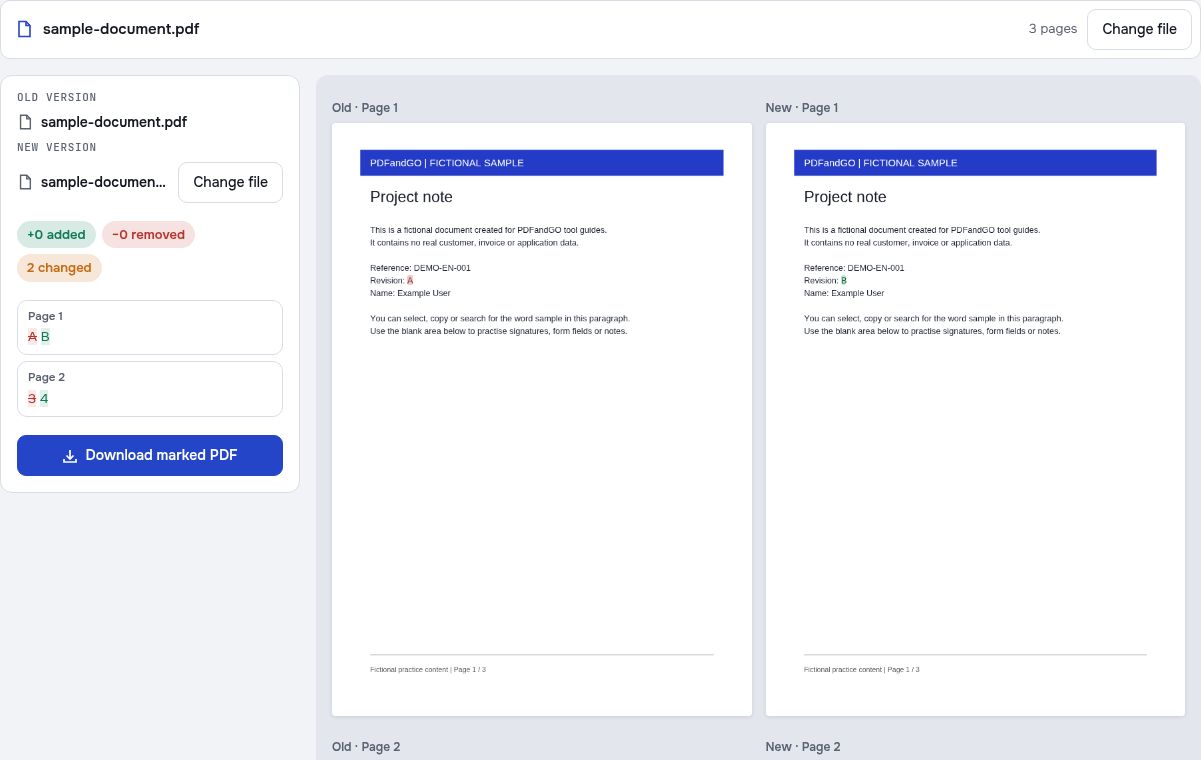
Use the fictional A and B documents below before comparing a report of your own. Both contain three pages. The revision label changes on page 1, and the folder quantity changes from 3 to 4 on page 2; page 3 is unchanged.
Start with changes you already know
Load revision A as the first document and revision B as the second. Inspect the revision label and the quantity on the supply-list page in the text and visual views that are available. This gives you a small reference case for understanding what the comparison highlights.
Separate a content change from a layout change
An extra line, a substituted font or a different page break can make a large area look different. In your own documents, inspect the words and the surrounding page before treating a colored region as a meaningful edit. The tool does not decide which revision is correct.
Check your result
- Confirm that both inputs are the intended three-page revisions.
- Find the known quantity change on page 2.
- Check the unchanged appendix as well as the highlighted areas.
Try it with fictional sample files
These are synthetic practice inputs, not customer documents or promised outputs. Keep the originals and inspect your own exported copies. Current allowances and Pro plans apply to advanced downloads.
Continue with these tools:
Questions and answers
Can I compare scanned PDFs?
A visual comparison can help with pages that contain images rather than readable text. Scan noise and misalignment can affect the marks.
Does it explain what a change means?
No. It helps locate text or visual differences; you need to interpret them in context.
Will it find every difference?
No completeness guarantee is made. Check important changes against both originals, especially for complex layouts.
Can I save a marked copy?
The tool offers an available marked PDF output. Reopen it and check that it shows the changes you need.
Are my document files uploaded?
PDF processing runs in your browser on your own device. Document files are not uploaded to a PDF-processing server. Software, fonts or language models may download when needed. Account, payment and technical data are handled separately under the privacy policy.
What are the access and download rules?
Basic use is free without an account, a daily file quota or a PDFandGO watermark. OCR, existing-text replacement and Word export are separate advanced operations; using them on the document can change its download-access requirements.
How can I test a PDF comparison before using my own files?
Download the fictional A and B samples. They have a changed revision label on page 1 and a folder quantity of 3 versus 4 on page 2. Compare these known changes first, then review the unchanged third page.