 English
 Español
 Français
 Deutsch
 Italiano
 Português
 日本語
 Русский
 한국어
 简体中文
 繁體中文
 العربية
 Български
 Català
 Nederlands
 Ελληνικά
 हिन्दी
 Bahasa Indonesia
 Bahasa Melayu
 Polski
 Svenska
 ไทย
 Türkçe
 Українська
 Tiếng Việt
 Kiswahili
All PDF tools › Edit, sign and prepare forms
Annotate a PDF with notes and highlights
Mark a document for study or review. Add a note, highlight an area or use arrows and shapes to point out what someone should check.
Open the toolPDF processing on your device · keep your originalBasic use is free without an account, a daily file quota or a PDFandGO watermark. OCR, existing-text replacement and Word export are separate advanced operations; using them on the document can change its download-access requirements. Current allowances and Pro plans.
How to annotate a PDF
- Open your PDF in PDFandGO and choose the page from the thumbnails.
- Choose “Highlight”. Drag over the area with a mouse; on a touch screen, tap to place the mark, then adjust its position and size. Choose a color under “Highlight color”.
- Switch to “Note”, tap where the comment should go, enter your text and select “Done”. Use “Pen” for freehand drawing or “Shapes” for arrows and boxes.
- Download a copy and reopen it. Use the PDF reader’s comment icon or comments panel to read the note.
Annotating and editing are different tasks
A comment beside a paragraph does not change the paragraph. A highlight or arrow can make a passage easier to review, but the original page content remains underneath. Use the editor when you need to change wording or add a new text block in a specific place.
A cover shape is not secure removal
Drawing a black box or white rectangle over a name can leave that name in the PDF data. Use the redaction tool when selected content must be removed from the distributed copy. Review automatic candidates if you use them, and inspect the result before sharing.
Check the recipient’s view
Marks can overlap small text or look different in another reader. Reopen the saved file where it will be used. If you need supported comments or filled fields merged into the page appearance, review the flattening tool and keep the editable original for future revisions.
Try the tool with sample files
Samples contain generated demonstration content, not real customer data. Keep the source when comparing settings. An example result does not guarantee the same behavior for every PDF.
Worked example: highlight a line and leave a review note
We prepared this example with the fictional three-page PDF below. On page 1, we highlighted the first text line below the heading in yellow and placed a review note in the margin. Compare the starting file with the result downloaded from the tool.
Repeat the example in PDFandGO
Open the starting PDF. Mark the first text line on page 1 with “Highlight”. Then use “Note” to add “Check the source for this section.” in the margin and select “Done”. The mark identifies the line; the note explains what needs checking.
Why is the full note not written on the page?
“Note” saves a PDF comment rather than printing text onto the page. The saved file has a comment icon; open it or the reader’s comments panel to read the text. Display and printing behavior vary between PDF readers. For words that should appear directly on the page, use the editor’s add-text option.
What we checked in the exported example
- The document still has three pages and its source text is unchanged.
- The yellow mark covers the first text line, with the comment icon in the margin.
- The comment contains “Check the source for this section.”; pages 2 and 3 have no added marks.
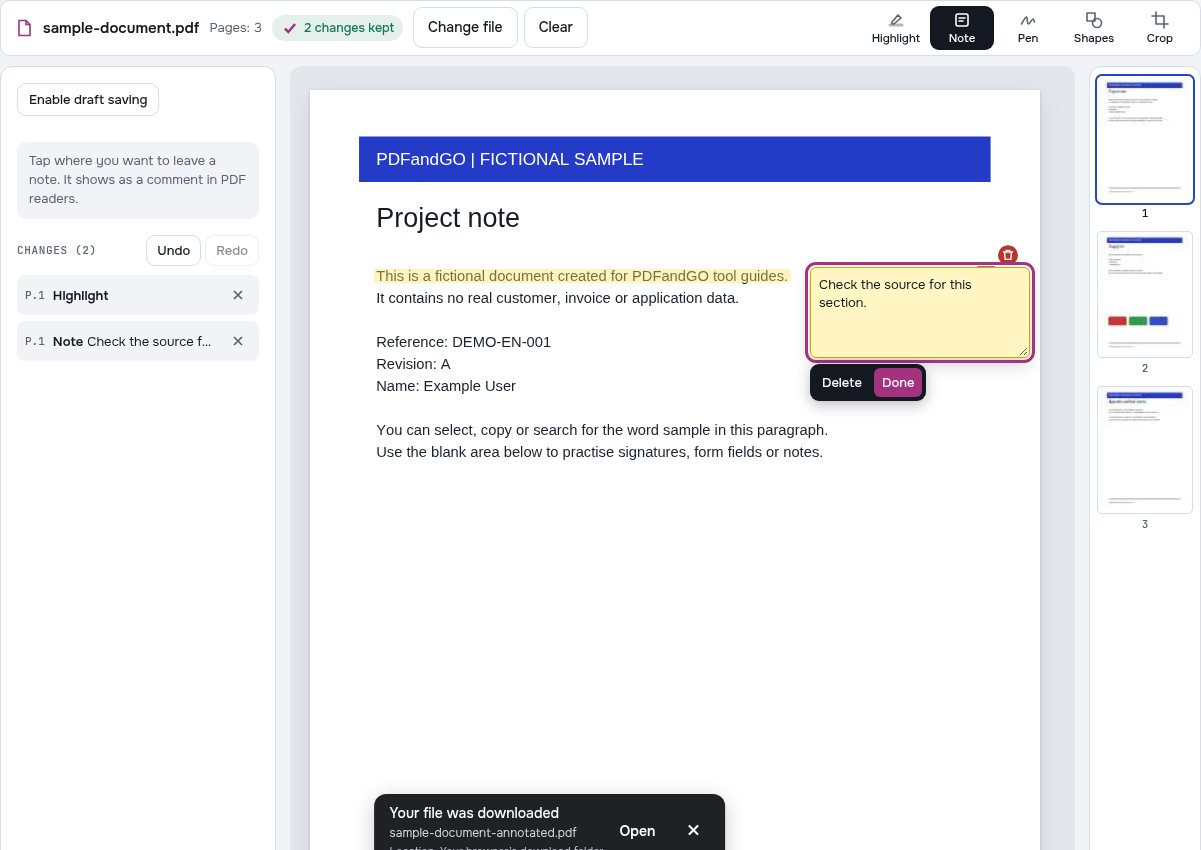
Starting file and our exported result
Both files are fictional examples prepared for this walkthrough, not customer documents. Open the starting file to try the steps and inspect the result in a separate PDF reader.
Continue with these tools:
Questions and answers
Do I need OCR to highlight or annotate a scanned PDF?
No. This tool draws a visible highlight over the area you choose and saves notes as PDF comments. Neither requires OCR. Searching or copying words from a scan is a separate task that may need OCR.
Does a note replace the original text?
No. It adds review content. Use an appropriate editing or redaction operation if you want to change or remove the source content.
Can I change line width and color?
The available annotation controls include color and line-width settings. Preview their effect on the page.
Does drawing over a word permanently delete it?
No. A visual overlay is not proof of removal. Use redaction for that purpose.
Are my document files uploaded?
PDF processing runs in your browser on your own device. Document files are not uploaded to a PDF-processing server. Software, fonts or language models may download when needed. Account, payment and technical data are handled separately under the privacy policy.
What are the access and download rules?
Basic use is free without an account, a daily file quota or a PDFandGO watermark. OCR, existing-text replacement and Word export are separate advanced operations; using them on the document can change its download-access requirements.
Does highlighting the sample replace its underlying words?
No. Highlighting or adding a review shape does not perform existing-text replacement. Review the exported copy, and use editing for wording changes or redaction when information needs to be removed.
Where can I read the note in my downloaded PDF?
The note is saved as a PDF comment. Open its icon or the comments panel in a reader that supports comments. A preview that only displays the page image may not show the comment text.