 English
PDF guides › How to Compress a PDF to 1 MB or 2 MB
How to Compress a PDF to 1 MB or 2 MB
Match an upload limit, check exact bytes and choose what to preserve. Compare an image-heavy report with a small fillable form using the downloadable examples below.
Compress a PDFCheck the upload limit in bytes
A job application, document portal or email service may specify a limit such as 1 MB or 2 MB. PDFandGO uses decimal megabytes: 1 MB = 1,000,000 bytes and 2 MB = 2,000,000 bytes. A binary mebibyte (1 MiB) is 1,048,576 bytes; it is a different amount. Follow the receiving service’s instructions if it specifies another rule.
The compression result shows exact bytes as well as a rounded size. Use the exact count to check the boundary, then verify the downloaded file before submitting it. A file displayed as “1 MB” after rounding can still exceed a strict 1,000,000-byte limit.
Try a target size, then review the result
- Keep your original and open the PDF in the compression tool.
- Choose Target size, then select 1 MB or 2 MB.
- Run compression. Check whether the result meets the selected limit and read its exact byte count.
- Zoom into small text, charts and signatures in the comparison view. Download only when the document is suitable for its intended use.
If the PDF already fits, Target size returns it unchanged. Otherwise the tool tries object compression first, then can create compressed page images if needed. Image conversion removes selectable text, links and interactive fields. The tool reports an over-limit result when it cannot reach the target; it does not guarantee that every PDF will fit.
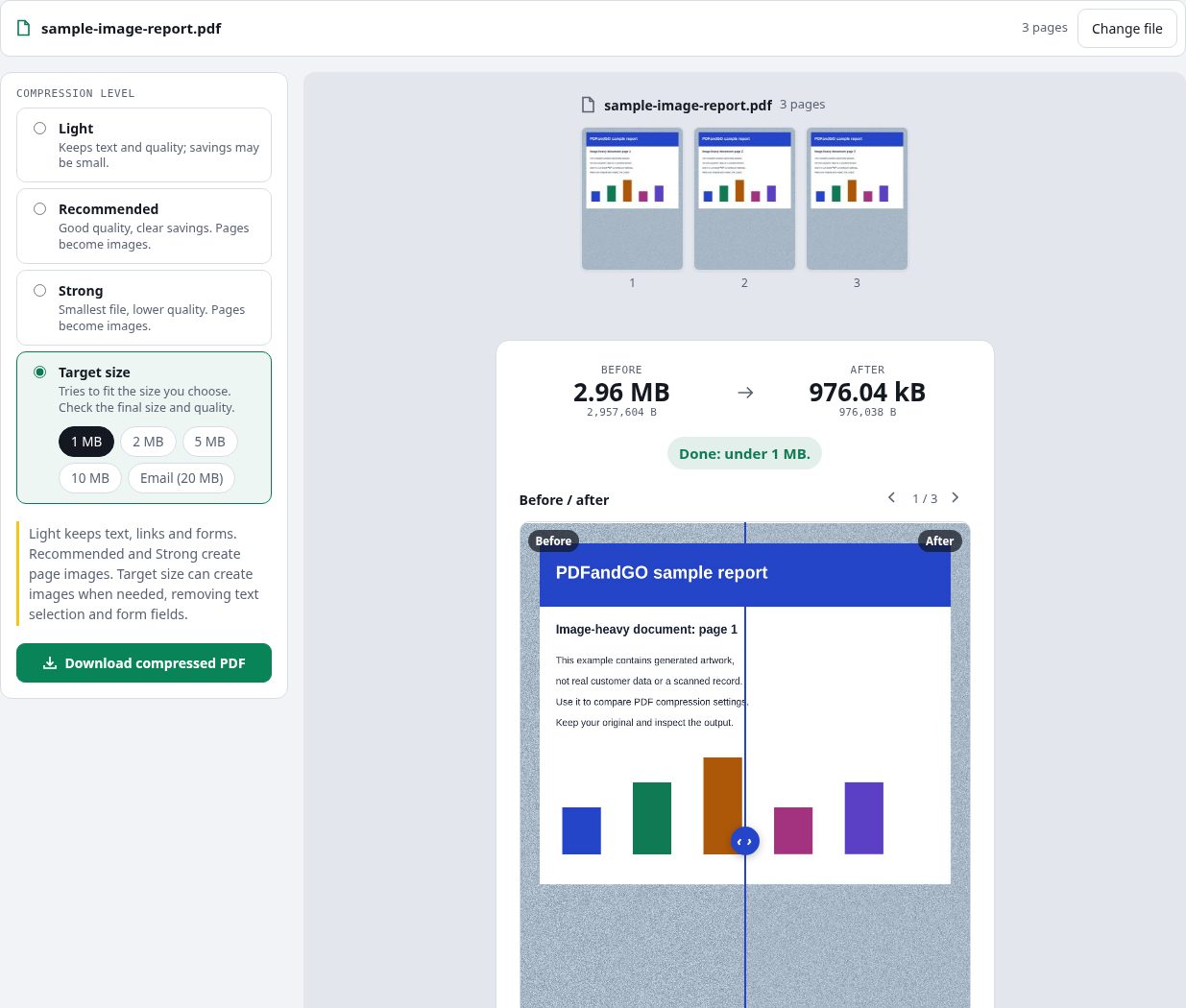
Example 1: an image-heavy three-page report
This generated report contains artwork and text already rendered as page images. We ran both the 1 MB and 2 MB targets, downloaded the results and checked their byte counts and page counts.
| File or setting | Exact bytes | Pages |
|---|---|---|
| Original report | 2,957,604 | 3 |
| Target: 1 MB | 976,038 | 3 |
| Target: 2 MB | 976,038 | 3 |
Both targets used the same compression step for this report and produced nearly identical sizes. The target is a cap, and the tool uses a set of compression steps; a larger cap does not always produce a meaningfully different output. This example does not predict the size or readability of another PDF.
Example 2: a small PDF with text, fields and a link
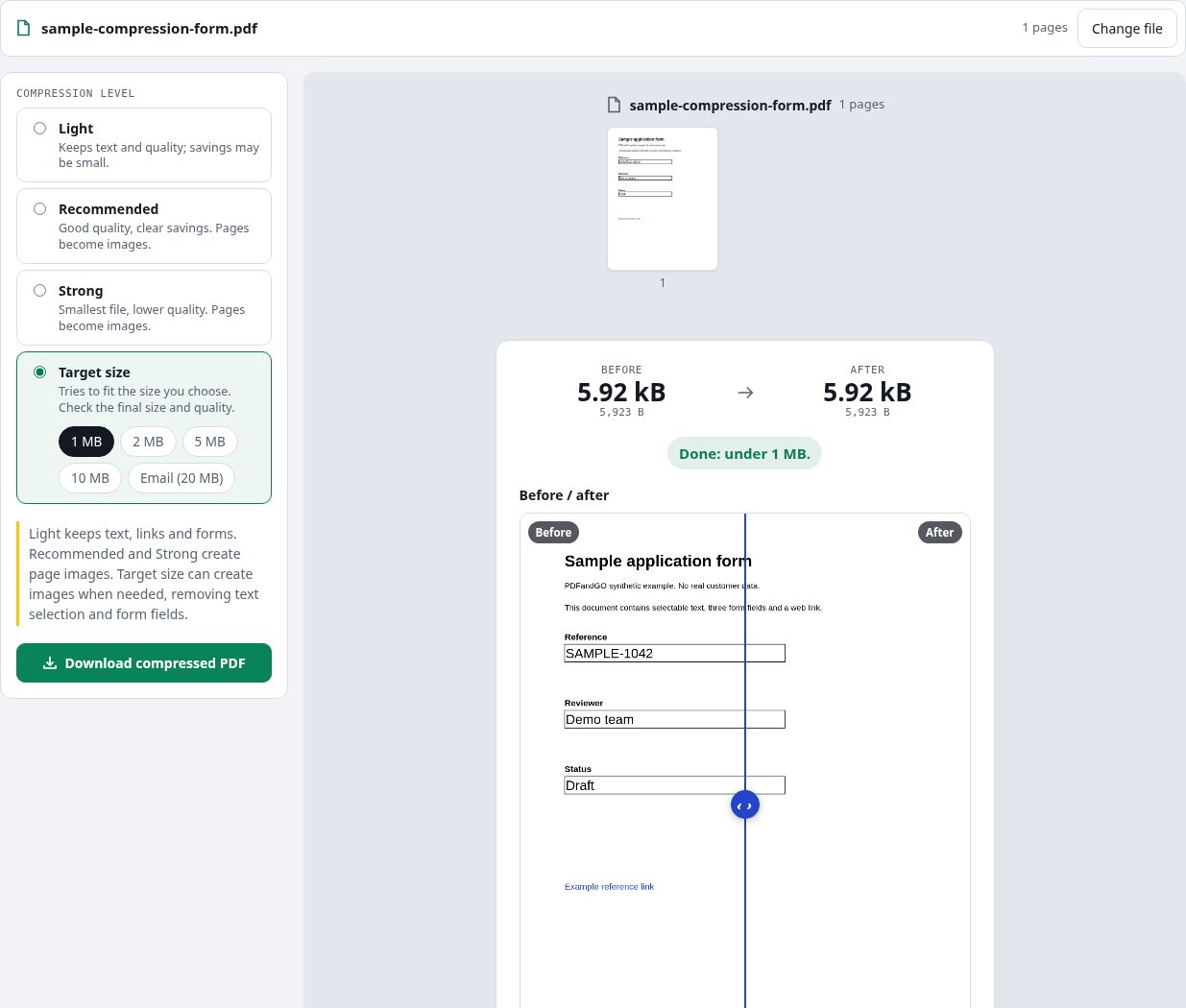
A native-text document behaves differently. Our one-page synthetic form contains selectable text, three filled text fields and a web link. It starts at just 5,923 bytes, so it already meets a 1 MB cap.
| File or setting | Exact bytes | Content check |
|---|---|---|
| Original form | 5,923 | Text, three fields and link |
| Light | 3,799 | Same text, field values and link retained |
| Target: 1 MB | 5,923 | Byte-for-byte identical to the original |
Light made this form smaller by re-saving PDF objects. Target size left it unchanged because it already fit. Recommended and Strong would render it as an image, removing native text selection and form interaction. On a small text document, rasterizing can increase the file size.
The link uses the reserved example.invalid address for demonstration. All downloadable samples contain generated content, with no real customer data.
Can you compress without losing quality?
Use Light when keeping selectable text, links or fillable fields matters. It preserves native PDF objects rather than rasterizing pages, though an already optimized document may not shrink. Check the output in the workflow where it will be used.
Recommended and Strong create page images; Strong uses a lower resolution and JPEG quality. They can help with scans and image-heavy documents, but reduce detail and remove interactive content. Target size can also take this path when object compression is insufficient.
A successful size check does not establish readability. Inspect fine print and charts at a useful zoom. Keep the original so you can compare another setting without repeatedly compressing an already degraded output.
If the PDF still does not fit
Check that you selected the intended target and that the receiving service accepts the exported size. The status beside the byte counts tells you whether the result meets the chosen cap. An over-limit result can still be downloaded, so read that status first.
If you cannot reach the limit at usable quality, remove unnecessary pages with Organize PDF, or use Split PDF if separate files are allowed. Compression is a free basic tool; OCR and other advanced operations have separate access rules.
Return to Compress PDF to choose a mode and try your own document.