

 English
 Español
 Français
 Deutsch
 Italiano
 Português
 日本語
 Русский
 한국어
 简体中文
 繁體中文
 العربية
 Български
 Català
 Nederlands
 Ελληνικά
 हिन्दी
 Bahasa Indonesia
 Bahasa Melayu
 Polski
 Svenska
 ไทย
 Türkçe
 Українська
 Tiếng Việt
 Kiswahili
All PDF tools › Edit, sign and prepare forms
Add page numbers to a PDF
Number a report, appendix or study document without uploading it for processing. Set the position, appearance and starting value, then check where each new number lands.
Open the toolPDF processing on your device · keep your originalBasic use is free without an account, a daily file quota or a PDFandGO watermark. OCR, existing-text replacement and Word export are separate advanced operations; using them on the document can change its download-access requirements. Current allowances and Pro plans.
How to add page numbers to a PDF
- Open the PDF and choose the number position and display format.
- Set the starting value and text style; enable the cover-page option if required.
- Review the preview, then save a PDF copy and check its numbering.
Choose a position and number format
The position grid offers top, middle and bottom positions, each aligned left, center or right. Formats include a number alone, a number with a total, and a page-label format. Use the preview to avoid placing numbers over text or diagrams, particularly in the middle of a page.
Start after a cover or continue a section
You can skip the first page and use a starting value other than 1. Check the first numbered page and displayed total; the cover-page setting affects which pages are counted. Reorder, insert or remove pages before numbering when possible, so the final sequence matches the document you intend to share.
Existing printed numbers are separate
The tool adds new numbers; it does not automatically remove numbers already printed in the source. A PDF page index can also differ from a printed chapter number. Keep the source file and check for duplicate numbering in the exported copy.
Try the tool with sample files
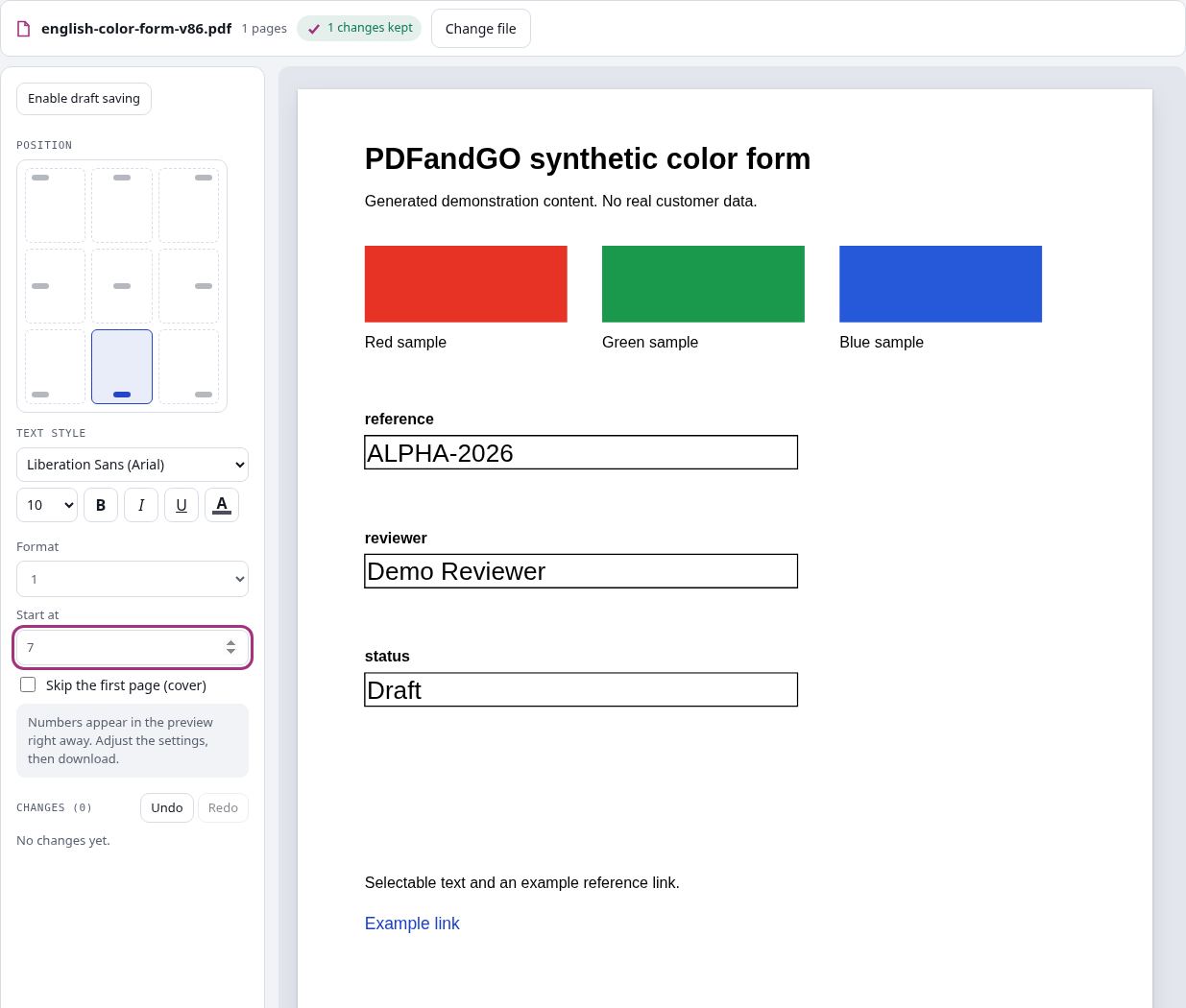
Samples contain generated demonstration content, not real customer data. Keep the source when comparing settings. An example result does not guarantee the same behavior for every PDF.
Questions and answers
Can I leave the first page unnumbered?
Yes. Use the cover-page option, then verify where numbering begins in the preview.
Can numbering start at 7 or another value?
Yes. Set the starting value in the tool. This is useful for a section that continues an earlier document.
Does it remove old page numbers?
No. It adds new page content. Existing numbers printed in the original remain unless handled separately.
Can I change the font, color or size?
The tool provides font, size, color and supported style controls. Check that the chosen number remains readable and does not overlap the document.
Are my document files uploaded?
PDF processing runs in your browser on your own device. Document files are not uploaded to a PDF-processing server. Software, fonts or language models may download when needed. Account, payment and technical data are handled separately under the privacy policy.
What are the access and download rules?
Basic use is free without an account, a daily file quota or a PDFandGO watermark. OCR, existing-text replacement and Word export are separate advanced operations; using them on the document can change its download-access requirements.