

 English
PDF guides with step-by-step examples › Add PDF background
Add PDF background — Guide
Add a color or image behind PDF content. Choose pages, opacity and image placement.
Open the toolHow it works
- Select your PDF in PDFandGO.
- Choose a color or upload an image, then set opacity and the pages.
- Apply the background, check the preview and download the edited PDF.
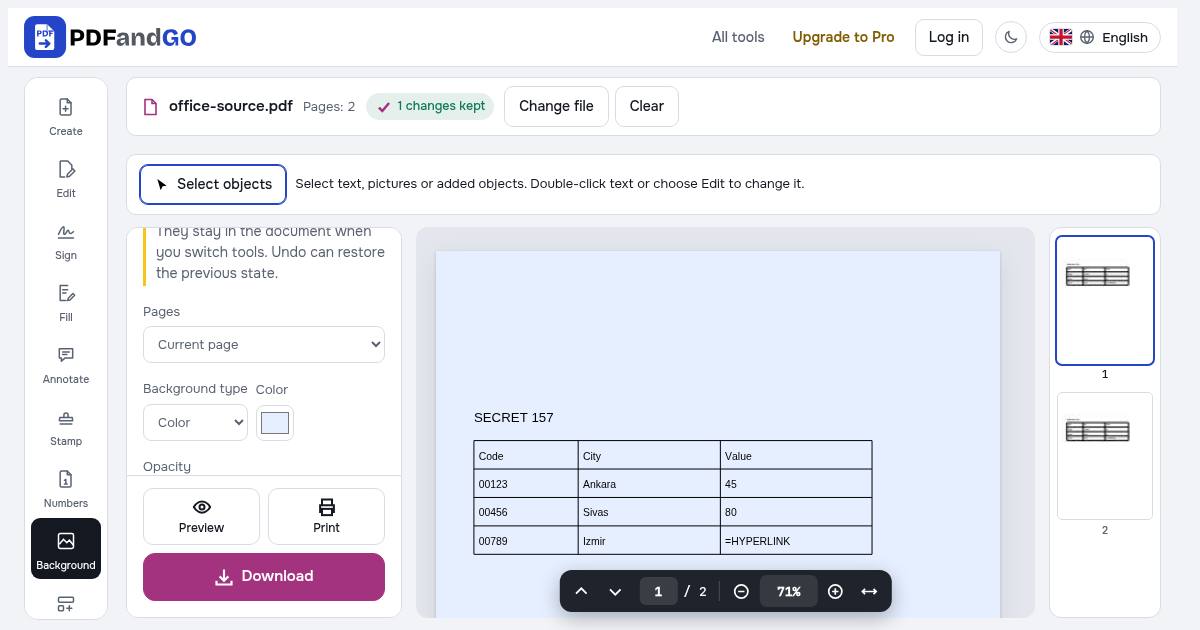
Image placement
Cover fills the page and may crop the image. Fit shows the whole image and may leave space around it. Stretch fills the page by changing the image proportions.
Pages
- All pages
- Current page
- Page range:
1-3, 5
Your background choices are saved automatically when completed. They stay in the document when you switch tools. Undo can restore the previous state.
Frequently asked questions
Why is my background hidden?
The background sits behind existing content. An opaque white page image can cover it.
Are my documents uploaded to a server?
PDF processing takes place in your browser; these tools do not upload your document for processing. Account, payment and advertising services can make their own network connections. See the privacy policy for details.
Can I use the tools without an account?
Basic tools are free without an account. Advanced downloads use daily allowances or Pro, and some tools require Pro. Check the pricing page for current access and limits.