

 English
PDF guides with step-by-step examples › PDF to Excel / CSV
PDF to Excel / CSV — Guide
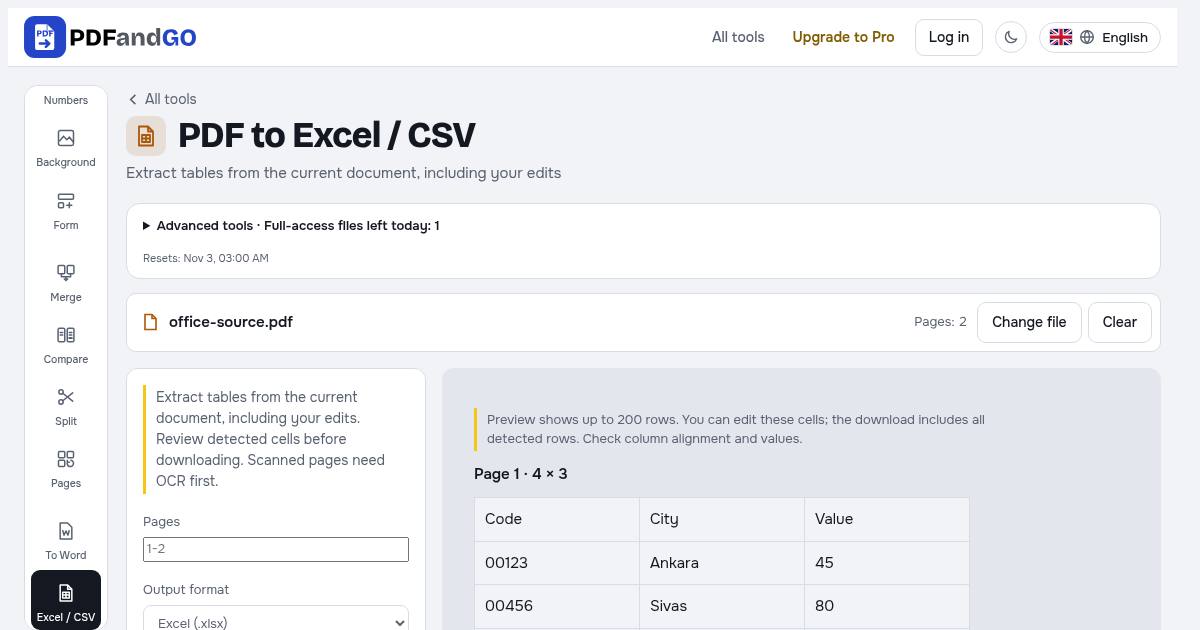
Extract tables from the current document, including your edits
Open the toolHow it works
- Choose PDF file
- Pages
- Find tables
- Columns (0 = automatic)
- Convert and download
Output format
Excel creates separate worksheets for detected tables and keeps values as text, including leading zeros. CSV combines the rows in one UTF-8 file; choose the separator used by your spreadsheet. Borders, merged cells and irregular columns can need manual correction.
Columns (0 = automatic)
Use 0 for detected tables or 1–50 for equal-width columns. Detection can need manual correction.
OCR (text recognition)
For scanned pages, run OCR first, then return to Excel/CSV and find the tables again.
Frequently asked questions
Does the download include the whole table?
Preview shows up to 200 rows. You can edit these cells; the download includes all detected rows. Check column alignment and values.
Are my documents uploaded to a server?
PDF processing takes place in your browser; these tools do not upload your document for processing. Account, payment and advertising services can make their own network connections. See the privacy policy for details.
Can I use the tools without an account?
Basic tools are free without an account. Advanced downloads use daily allowances or Pro, and some tools require Pro. Check the pricing page for current access and limits.