

 English
 Español
 Français
 Deutsch
 Italiano
 Português
 日本語
 Русский
 한국어
 简体中文
 繁體中文
 العربية
 Български
 Català
 Nederlands
 Ελληνικά
 हिन्दी
 Bahasa Indonesia
 Bahasa Melayu
 Polski
 Svenska
 ไทย
 Türkçe
 Українська
 Tiếng Việt
 Kiswahili
All tools › Edit and sign
Sign a PDF Online for Free
Draw a signature or use a signature image, then place it where you need it on a PDF page. Download a signed copy without printing and scanning the document. Basic visible-signature placement is free without an account.
Basic use is free without an account, a daily file quota or a PDFandGO watermark. OCR, existing-text replacement and Word export are separate advanced operations; using them on the document can change its download-access requirements. Current allowances and Pro plans.
Add a SignatureDocument processing on your device · works in your browserHow to sign a PDF online
- Choose your PDF from your device and open the Sign PDF tool.
- Draw in the signature pad, or choose an image of your signature. Select Use this signature.
- Click the document to place the signature. Check its position and size on the page; use Undo if you need to place it again.
- Choose Download, keep PDF as the output format and save a copy. Reopen it to check the signature before sharing.
Draw on your phone and sign on your computer
In Sign PDF, or Sign inside Edit, choose Sign with your phone. Scan the QR code, draw with your finger and tap Send signature. After the computer confirms receipt, click the PDF to place the signature and adjust its size. Existing edits stay in the document. A modern browser and a direct connection between the devices are required; if connection fails, try the same Wi-Fi network. This adds a visible signature image, not a certificate-based digital signature.
The PDF stays on your computer. Only the signature travels directly between the devices. Share this temporary link only with the signer.
This QR code is valid for 10 minutes and for one signature. Closing the computer window ends the connection.
Place a visible signature on the page
The signature becomes an image placed on the document. This is useful when you need to return a PDF with a visible signature mark instead of printing, handwriting and scanning an entire page.
A visible mark is different from a certificate-based digital signature. PDFandGO does not issue a signing certificate or verify the identity of the person drawing the mark. Check which signing format the recipient requires.
Draw a signature or use an image
Use the pad to draw with the pointer available on your device. You can also choose a signature image. Check the edges and contrast in the preview, especially when an image has a light background or faint ink.
A small source image can look blurry when enlarged. Position the mark inside the intended signature area and check that it does not cover nearby names, dates or other text.
Save your copy and review it
Download the PDF when the placement is correct. The download creates a file; it does not send the document to the recipient. Keep the original PDF if you may need another copy without the mark.
If you choose to save a signature for reuse, it is kept in this browser on this device. It is not a signature library shared across all of your devices. Browser data removal can remove saved signatures.
Free signing and other PDF operations
Drawing or uploading a visible signature and saving it as a PDF is a basic operation. It does not require an account, a daily file allowance or a PDFandGO watermark.
OCR, existing-text changes and Word exports have separate advanced-download access rules. For example, recognizing a scanned contract and replacing its wording is a different operation from placing a signature image on it.
Try the example and inspect the output
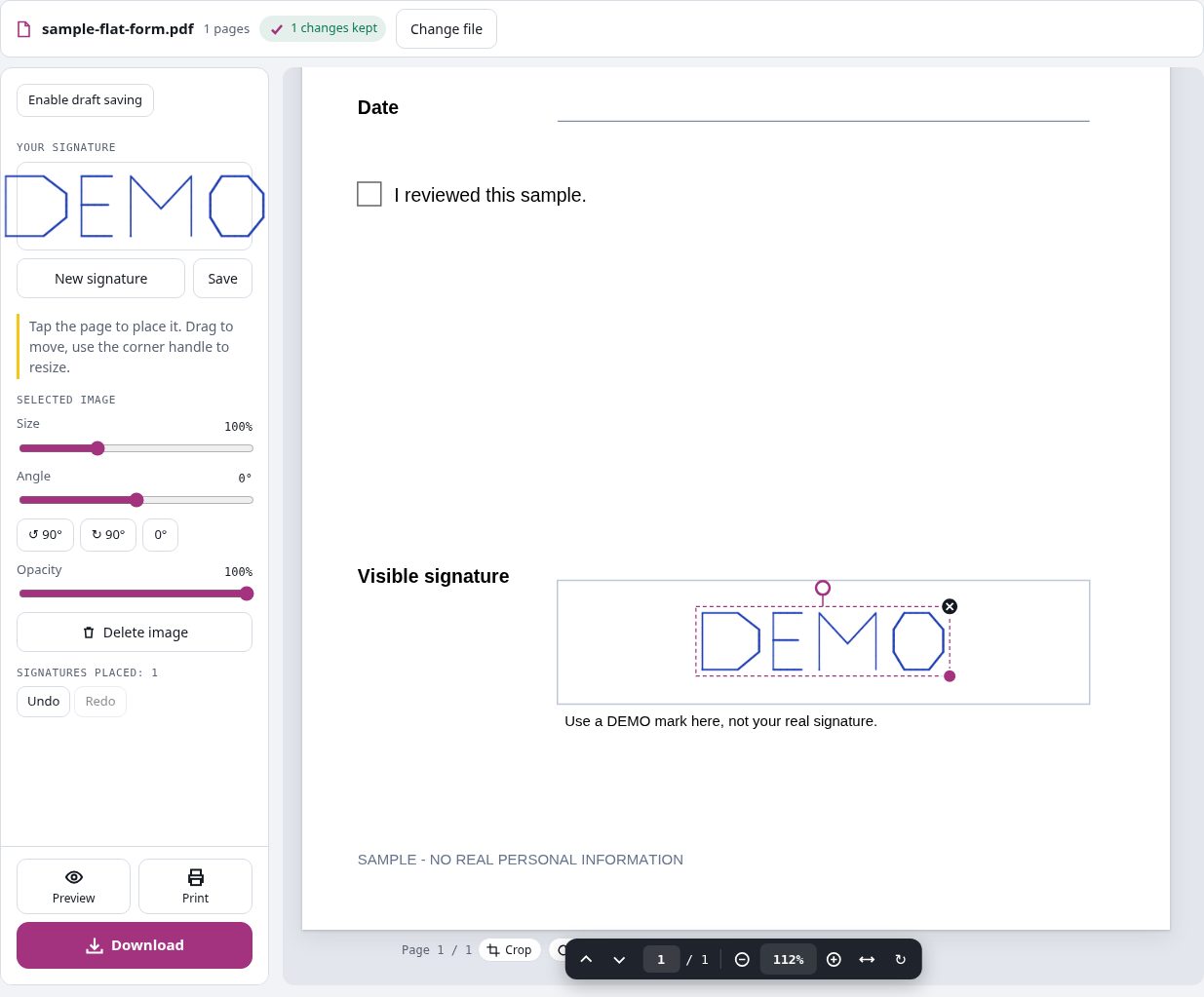
We drew a blue DEMO mark in the signature pad, placed it inside the sample’s signature area and exported a PDF. The result contains one visible signature image and no certificate-signature field.
Questions and answers
Does this create a certificate-based digital signature?
No. This tool places a visible signature image on a PDF page. It does not issue a certificate or verify the signer’s identity. Use the signing process requested by your recipient when a certificate is required.
Can I use a signature image instead of drawing?
Yes. Choose an image in the signature panel, review its appearance and place it on the page. Check image quality, contrast and placement before downloading.
Is my saved signature available on another device?
A signature saved for reuse is kept in this browser’s local storage. It is not automatically synchronized to another browser or device. You can also use a signature without saving it for reuse.
Does PDFandGO email the signed document?
No. Save the signed PDF, inspect the file and share it using the method you choose. Downloading is separate from sending the document.
Are my document files uploaded?
No. PDF processing runs in your browser on your own device. Software, fonts or language models may download when needed. Account, payment and technical data are handled separately as explained in the privacy policy.
Does it work on a phone?
Use a supported modern browser on your phone, tablet or computer. Large or complex documents depend on your device memory and may take longer.
Is it free?
Basic use is free without an account, a daily file quota or a PDFandGO watermark. OCR, existing-text replacement and Word export are separate advanced operations; using them on the document can change its download-access requirements. Current allowances and Pro plans.