 English
PDF guides › Add Text to a PDF vs Edit Existing Text
Add Text to a PDF vs Edit Existing Text
Learn when to add a new text box and when to edit existing PDF text. Follow the steps with a downloadable sample and check the saved result.
Open PDF EditorChoose the operation that matches your task
A date, a note or an answer on a flat form usually needs a new text box. A typo inside an existing sentence needs the original wording to be selected and replaced. Both can look similar on screen, but they change a PDF in different ways.
PDFandGO provides Add text and Change text controls. Basic text boxes are free; replacing existing text and OCR use advanced download allowances. Check current allowances and Pro pricing before choosing an advanced output.
Add a note without changing the original words
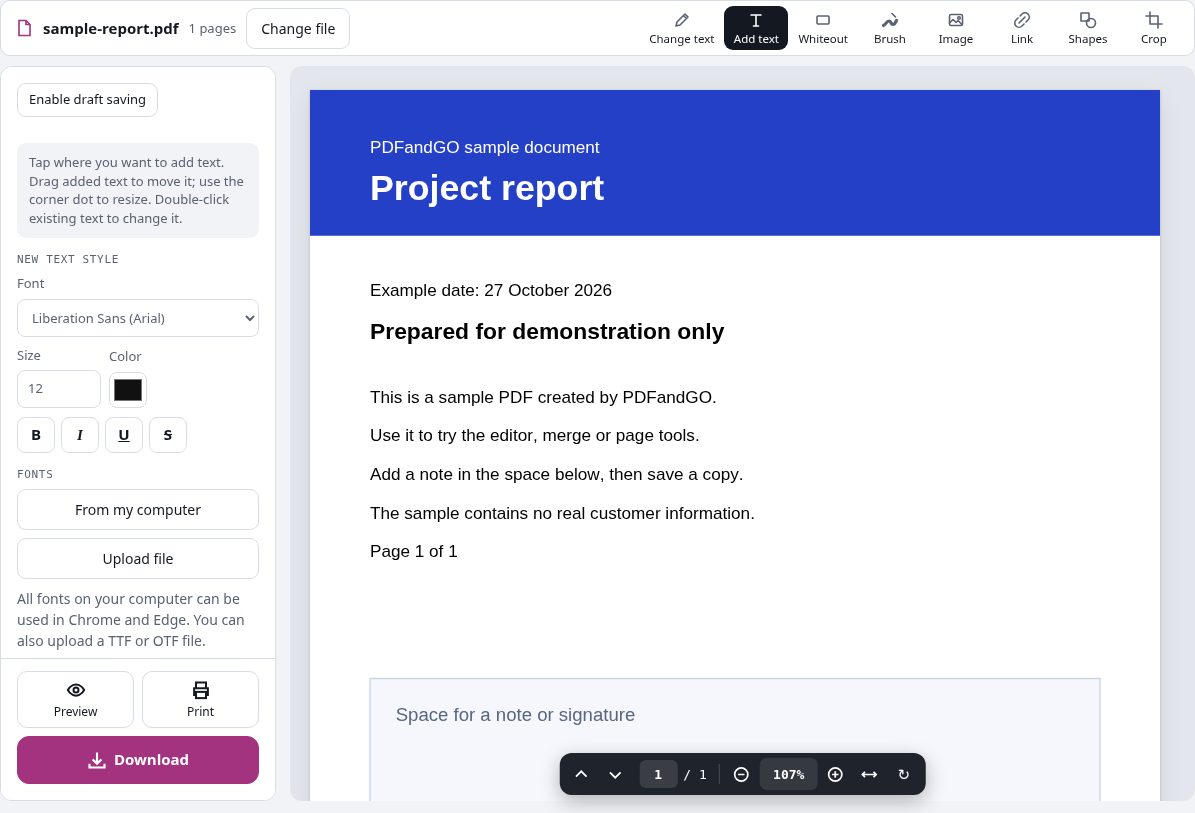
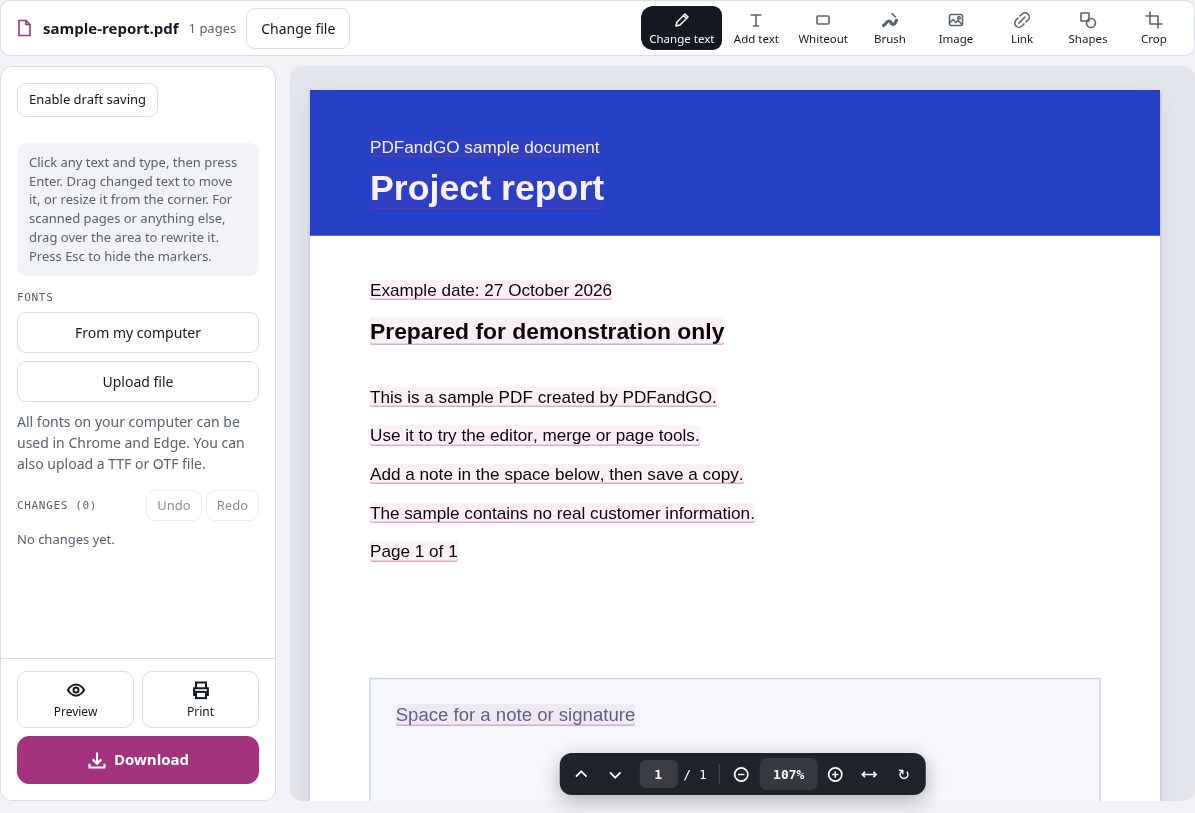
Open the editor and choose the sample PDF below. Select Add text, then place a text box where the note should appear. Enter your words and review the font, size and color. Check the page preview before downloading.
This is useful for a form with no interactive fields, a short note or a date. Placing a box over existing words does not by itself remove those original words from the file.
Change words that already exist in the PDF
Choose Change text and select the original text you want to replace. Enter the replacement, then check its appearance and spacing. PDFandGO tries to match the source font, but missing characters or a longer sentence may need adjustments.
A scanned page contains an image of words. Use OCR in the document language before working with recognized text, and check names and numbers for errors. An OCR result needs review; it is not guaranteed to recognize every character.
Whiteout and redaction have different purposes
Covering an area may be useful for visual layout changes. For removing sensitive information, use permanent redaction and review the exported document. Do not treat a white rectangle or an added text box as proof that underlying content has been removed.
Keep the source PDF and inspect an exported copy. A Word conversion is another option when you need more extensive changes to a document’s layout.
Try the same document
The sample is a one-page PDF created for this guide. It contains no real account, customer or business records.